Our experts are always on hand to help answer your questions, get you started, and grow your presence online. You can email us any time
How to secure the admin services of your onion service
- Knowledgebase
How to secure the admin services of your onion service
Besides your website, the service exposes a few administration endpoints on fixed ports. They share one password and can be switched off completely while you are not using them.
Step 1 — See what is exposed
In the Customer Portal, open your onion service and click "Admin Software". The card lists every admin service and its port: phpMyAdmin on :81 (PHP hosting only), File Manager on :82, Cron on :84 and sftp on :22. Plans that include web statistics add Webalizer on :83 and Awstats on :85. The line above the card reads Current admin service status: active or inactive.
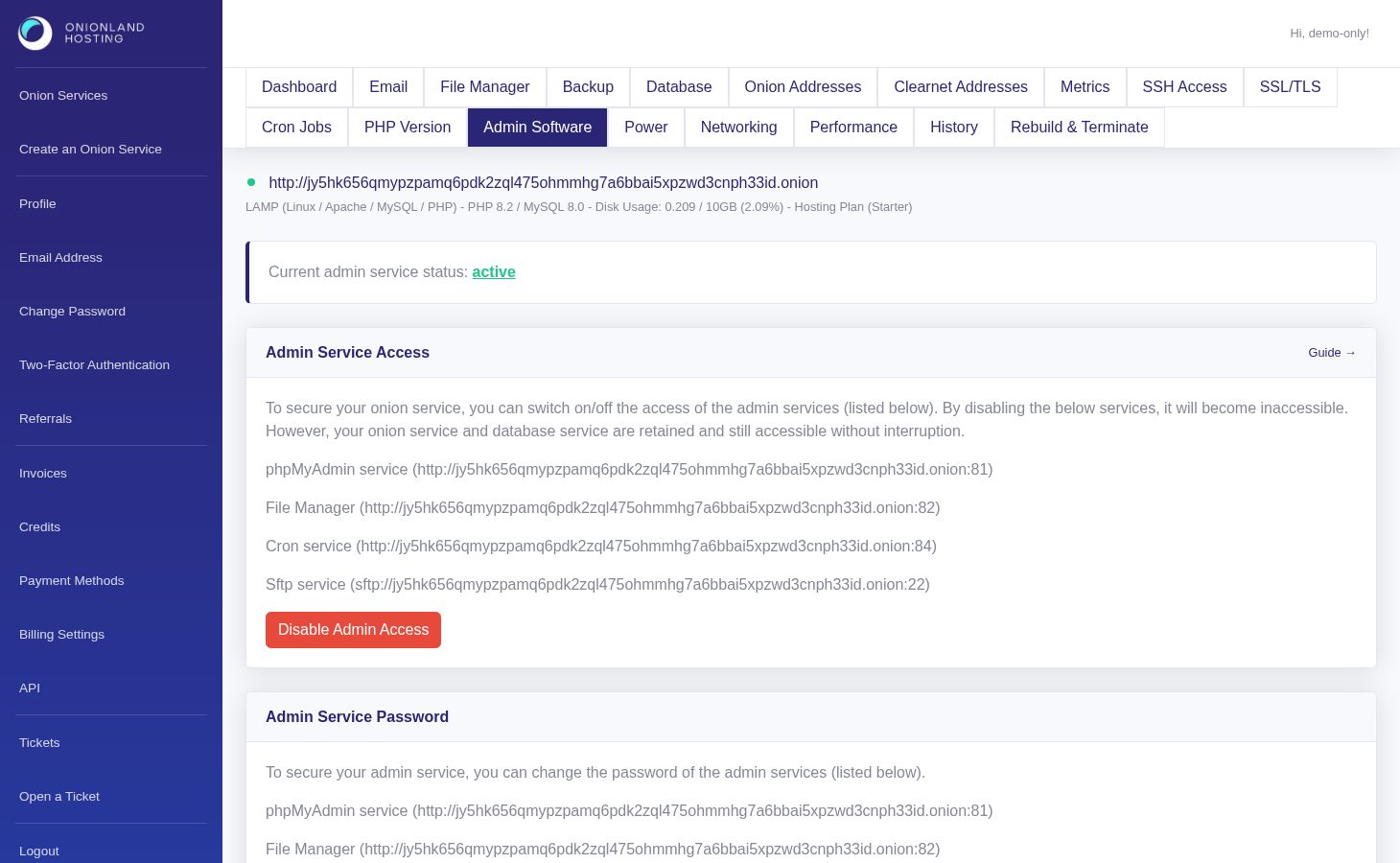
Step 2 — Disable admin access while you do not need it
Click Disable Admin Access. The page reloads with a green message: "The admin service is disabling. You may check the history page to see the latest status." Your website and database keep running without interruption — only the administration endpoints become unreachable.
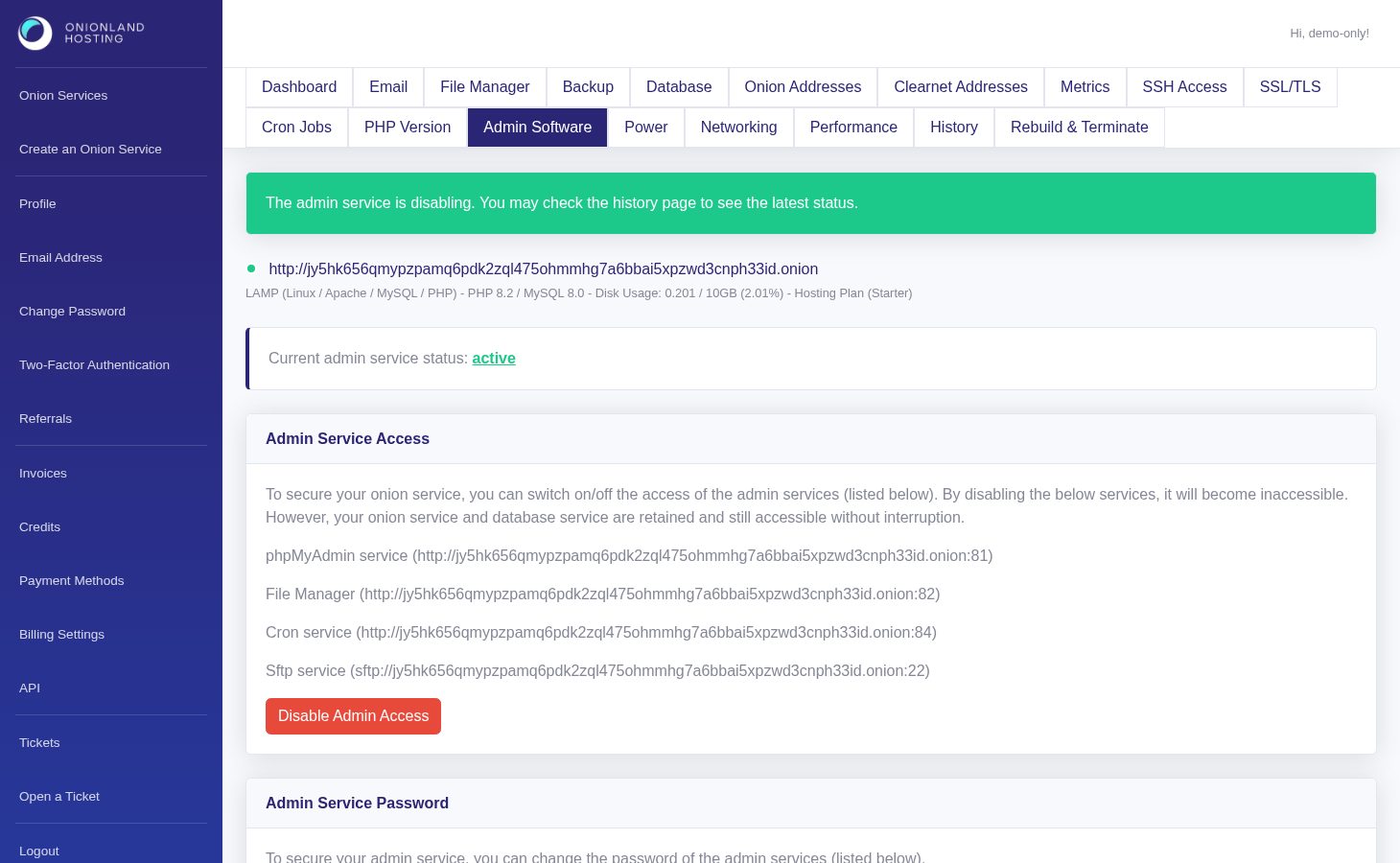
The status line keeps reading active until the host has finished the job; then it reads inactive and the button becomes Enable Admin Access. Enabling again answers "The admin service is enabling. You may check the history page to see the latest status."
Step 3 — Change the admin service password
The second card changes the password used by all of the above. Type your onion address into the field — the portal compares it with the address printed in the label — and click Change Admin Service Password.
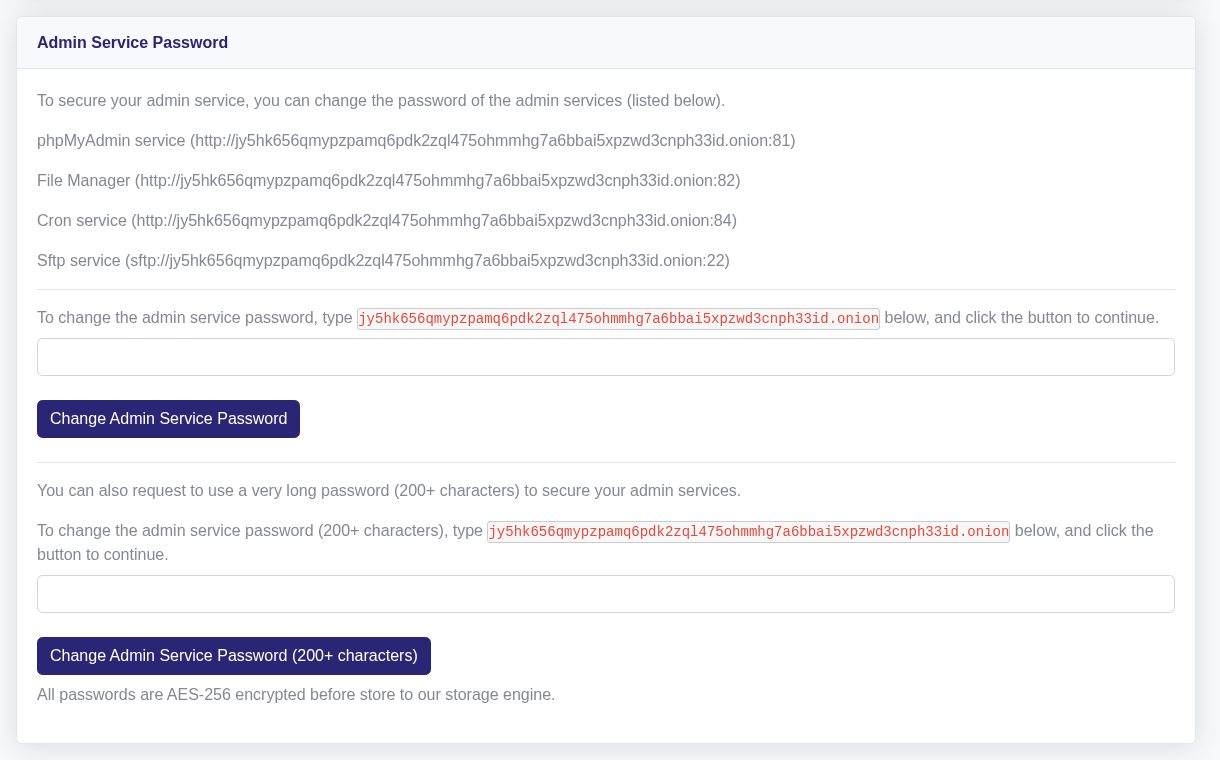
The answer is "The password changes will be effective in a few minutes." A wrong or partial address is refused with "Your input does not match to onion service URL." and nothing changes.
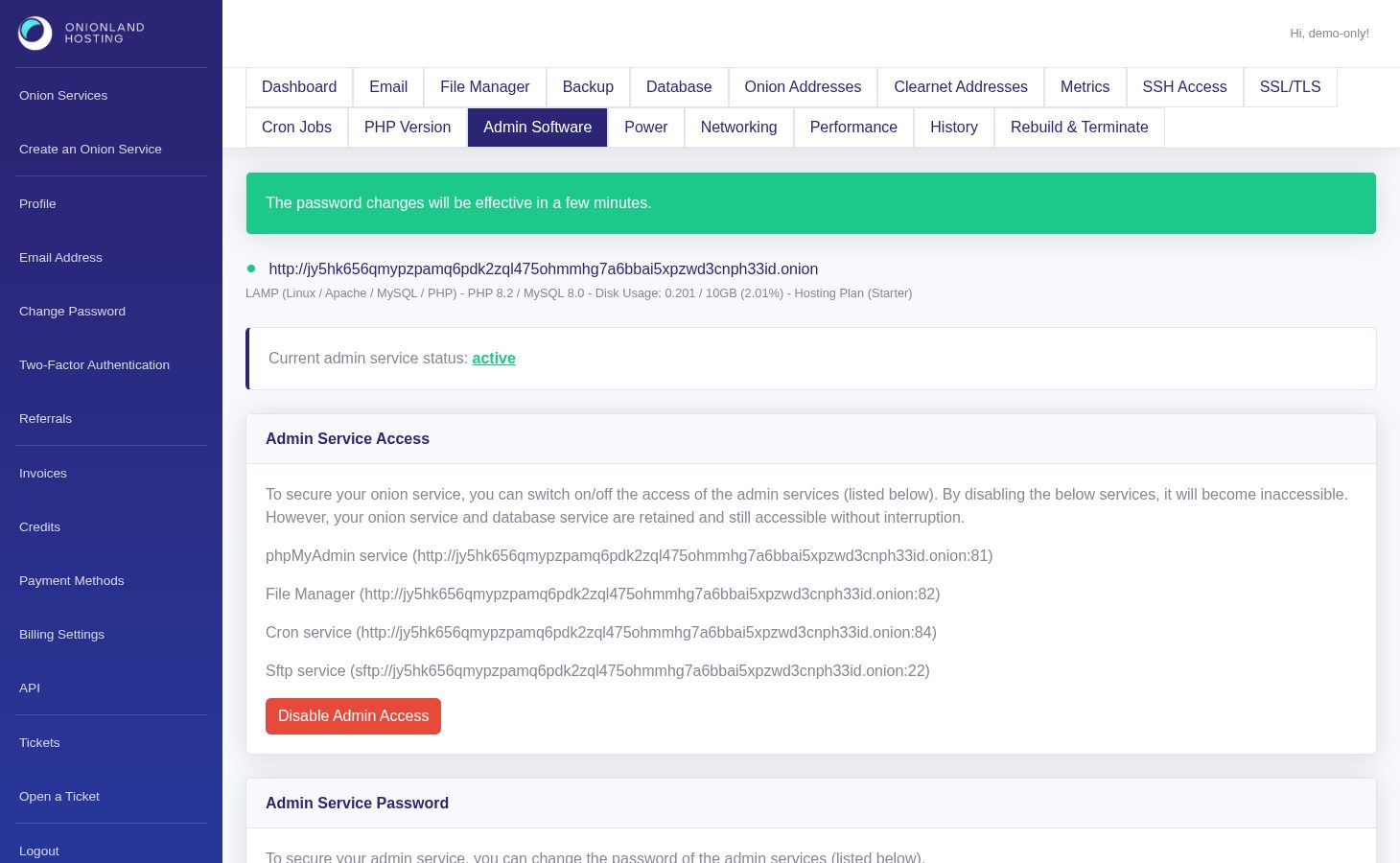
Step 4 — Optional: a 200+ character password
The same card offers Change Admin Service Password (200+ characters). It uses the same typed confirmation and the same response, but generates a very long random password — useful when you keep the credentials in a password manager. All of these passwords are AES-256 encrypted before they are stored, and the current value is shown on the File Access and Database tabs of the same service.
Related articles
- How to check the history of your onion service
- How to connect to your onion service with SSH
- How to change the PHP version of your onion service
Tags:
- Onion Service
- Customer Portal
- Security