Our experts are always on hand to help answer your questions, get you started, and grow your presence online. You can email us any time
How to check the history of your onion service
- Knowledgebase
How to check the history of your onion service
Every action that changes your service — a PHP version switch, a reboot, a password rotation, a new clearnet address — is queued as a job on the host. The History tab is where you confirm that the job ran, and how long it took.
Step 1 — Open the History tab
In the Customer Portal, open your onion service and click "History". The newest events are at the top; older ones continue on the next page.
Step 2 — Read the three columns
Event is the action that was queued, Initiated is how long ago you asked for it, and Execution Time is how long the host took to apply it. A dash in the last column means the action needed no host job, and Executing… means the host is still working on it — reload the page to follow it.
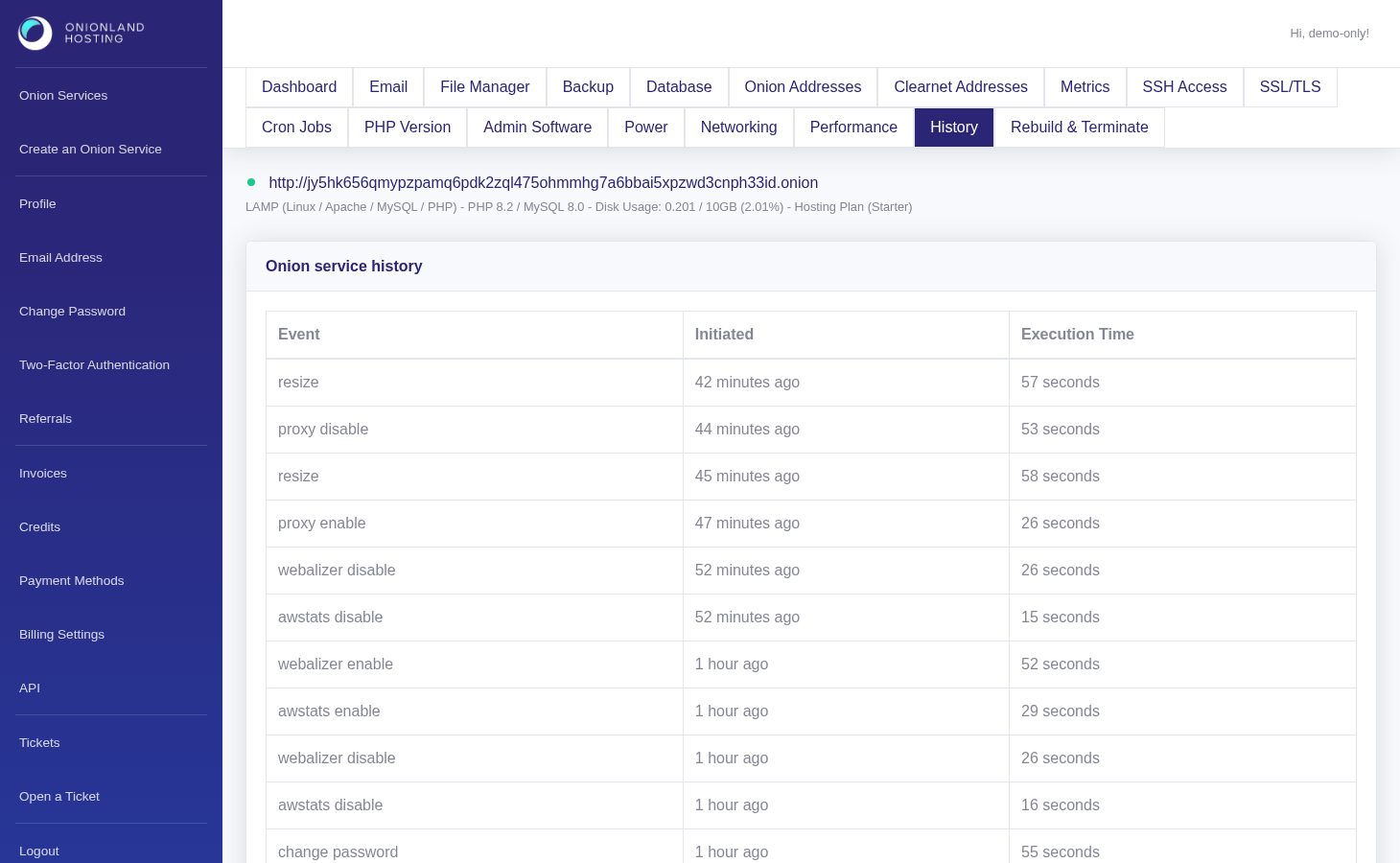
Step 3 — Use it to verify a change
A change is only real once it appears here with an execution time. After a PHP version switch, for example, the row reads change php version with the seconds it took; the same applies to reboot service, ssl enable, admin service on/off, change password, change disk, clearnet bindings and the two backup jobs. If your request is missing from this list entirely, it was refused before it reached the host — read the message on the tab you submitted from.
Related articles
- How to read your onion service dashboard
- How to review your account activity
- How to change the PHP version of your onion service
Tags:
- Onion Service
- Customer Portal
- History