Our experts are always on hand to help answer your questions, get you started, and grow your presence online. You can email us any time
How to review your account activity
- Knowledgebase
How to review your account activity
The portal keeps a log of everything that happens on your account — sign-ins, billing changes, and actions on your services. It is the first place to look when something changed and you are not sure what caused it.
Step 1 — Open Account Activities
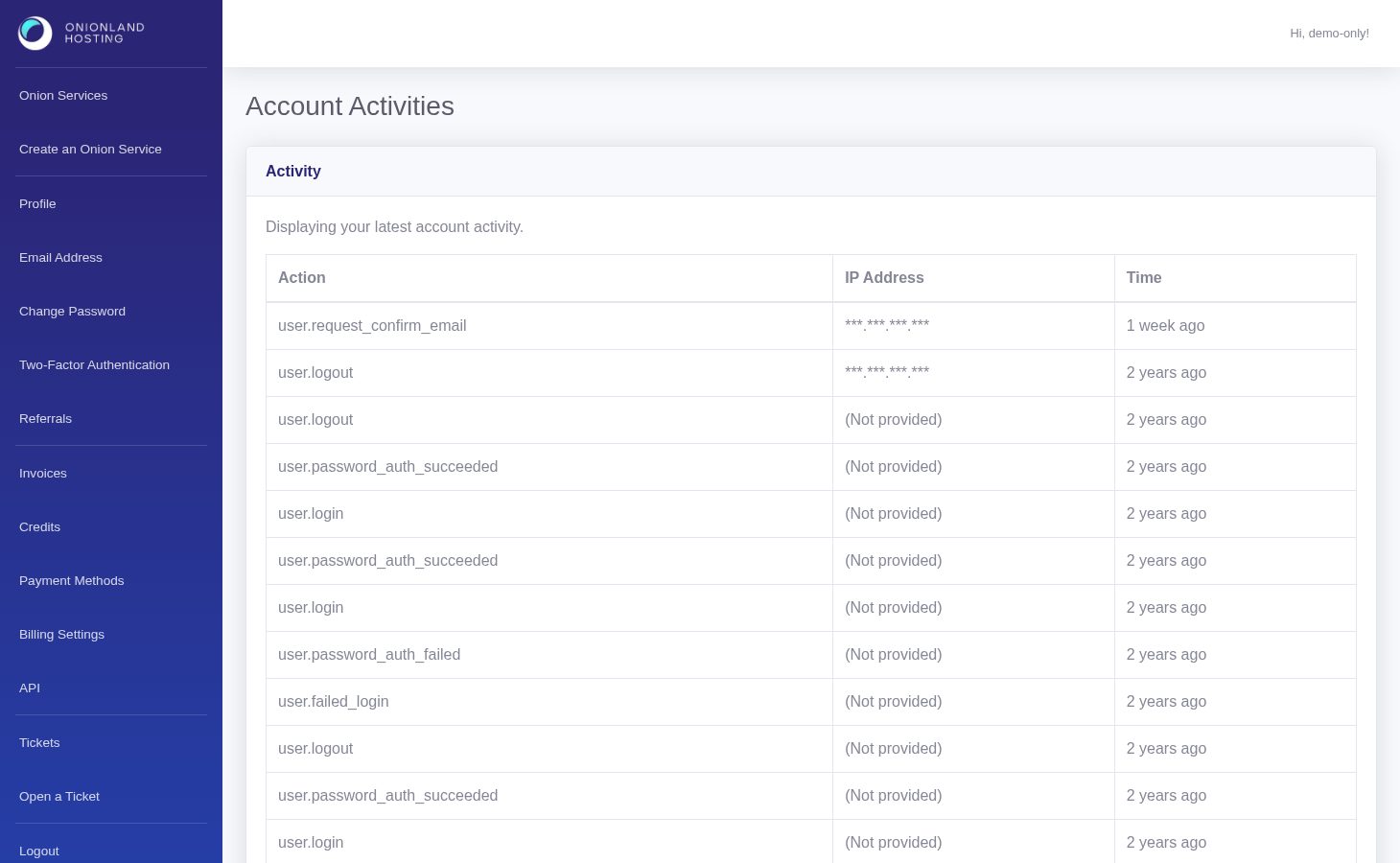
In the Customer Portal, click "Activities" (or open /portal/activities). The page lists events newest first with three columns.
Step 2 — Read a row
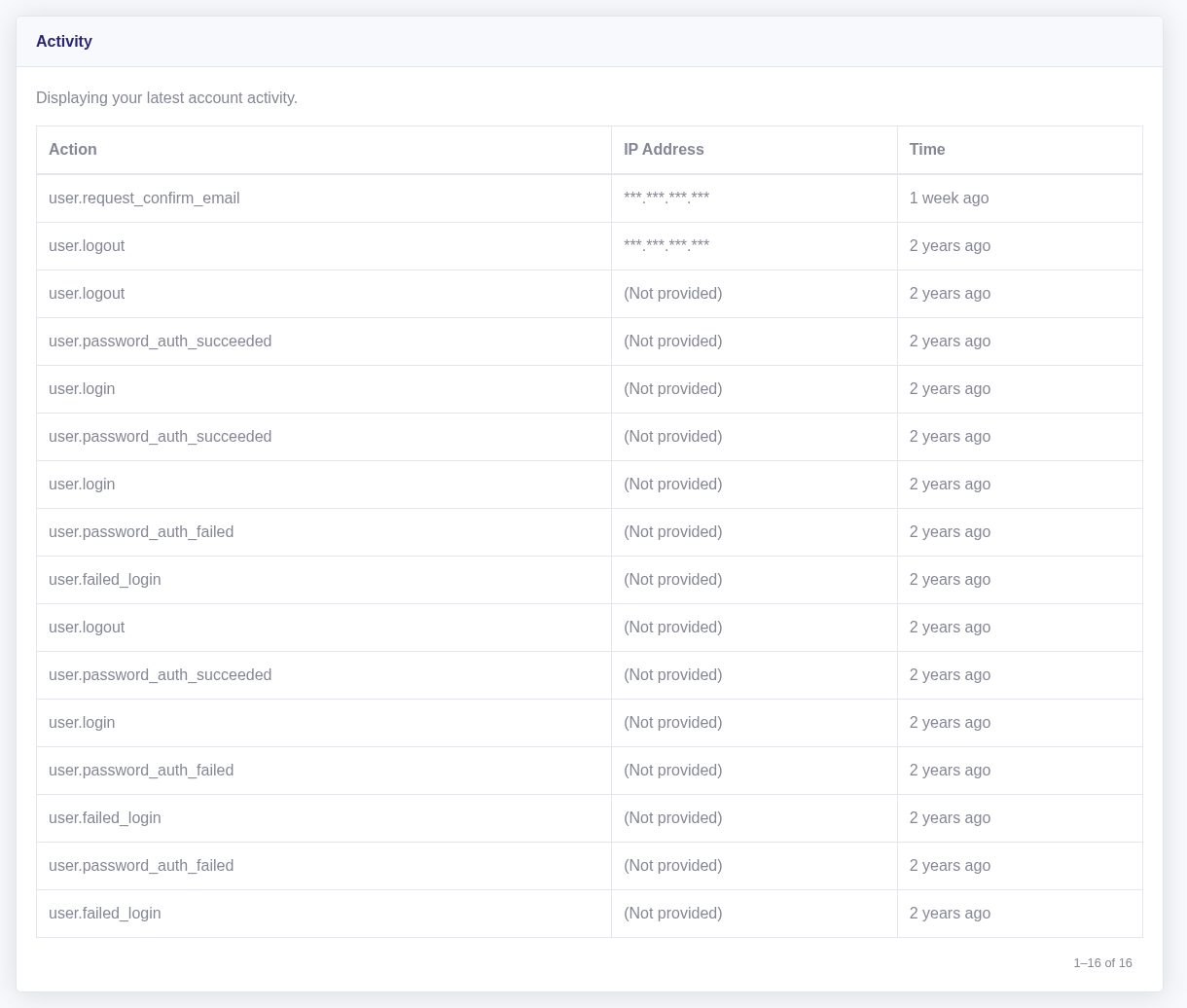
- Action — what was done, in plain words: a sign-in, a password or email change, a top-up, a ticket, an API token, a service action.
- IP Address — where the request came from. If you always sign in over Tor, expect a different exit address each time; a request from a place you have never used is worth investigating.
- Time — when it happened, in relative form.
Step 3 — Use it together with the service history
The activity log covers the account; the History tab of a service covers that one service's jobs (PHP version, disk, reboot, admin access, backups). A change you cannot explain is usually visible in both: the activity log shows who did it, the service history shows what the host then executed.
Old entries are paginated. If you need a longer record than the page shows, take note of the date and time of the event and open a ticket — do not wait, because the log rotates.
Related articles
Tags:
- Customer Portal
- Account
- Security