Our experts are always on hand to help answer your questions, get you started, and grow your presence online. You can email us any time
How to create an API token
- Knowledgebase
How to create an API token
The OnionLand Hosting API lets a script manage your services without the portal. Access is granted with personal access tokens: a name, a scope and an expiry, combined in one string that works as a username and a password at the same time.
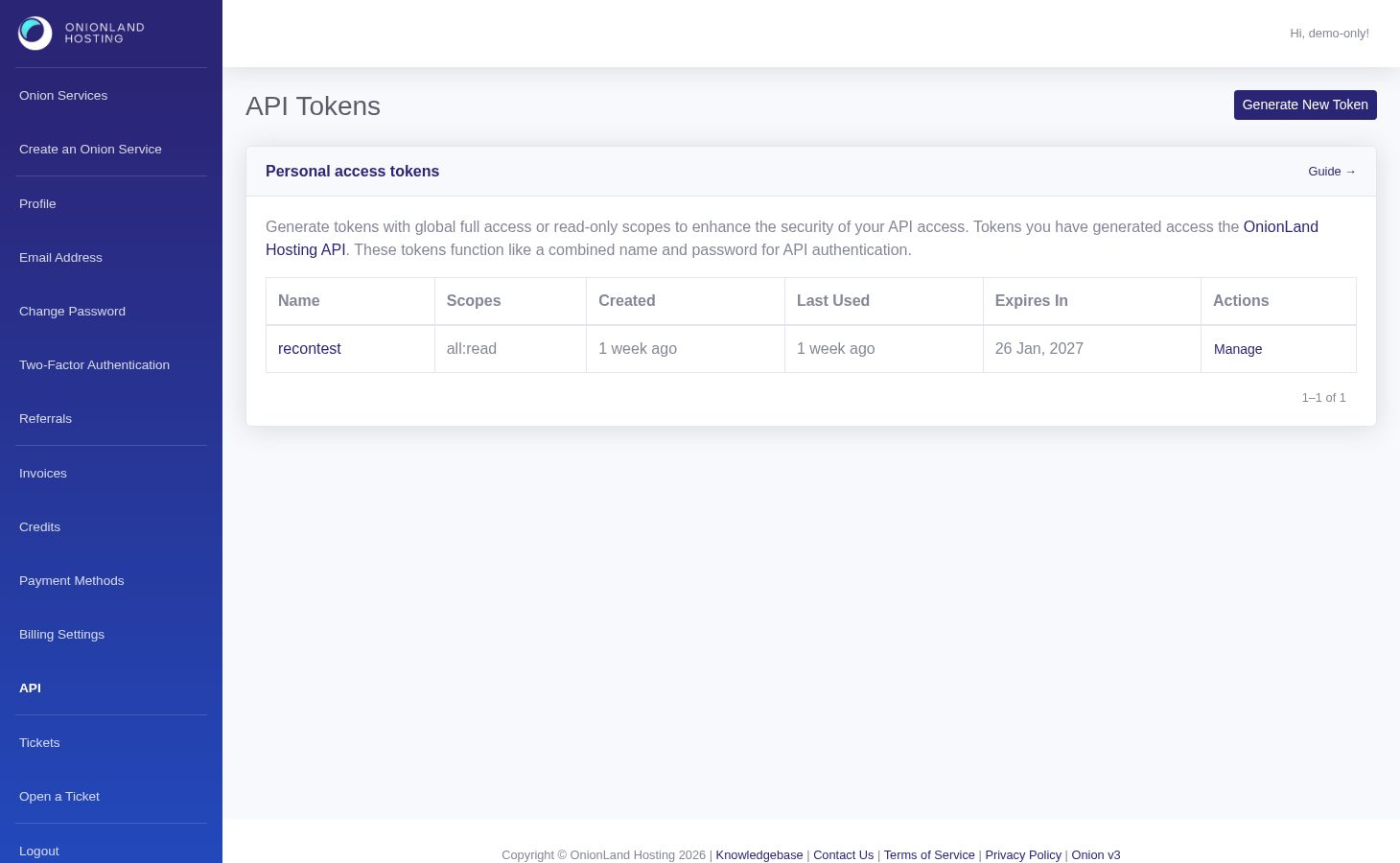
Step 1 — Open the API page
In the Customer Portal, click "API" in the sidebar. Personal access tokens lists the tokens you already have with their name, scope, creation time, last use and expiry.
Step 2 — Generate a new token
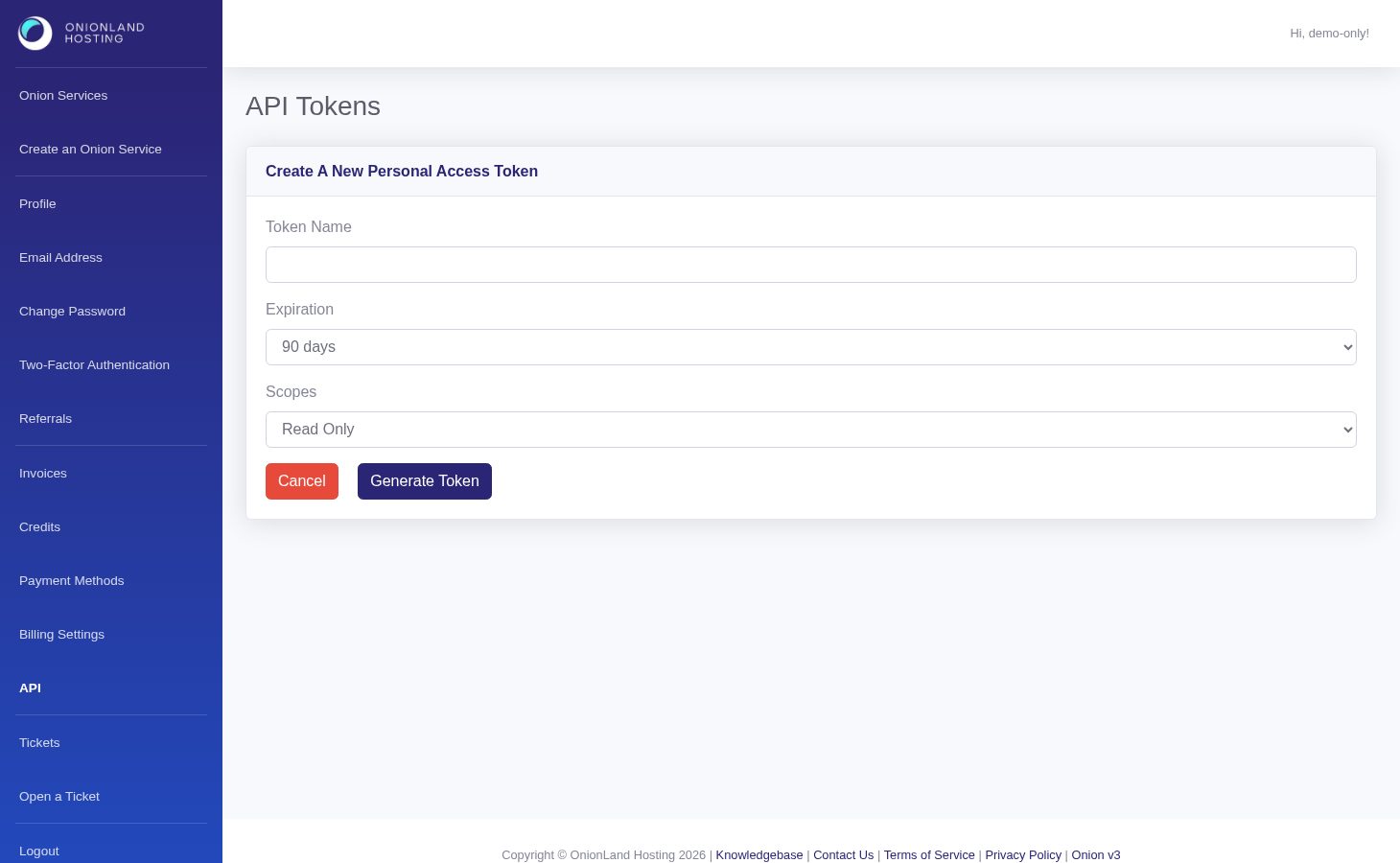
Click Generate New Token, give it a name you will recognise later, choose the expiry (30 days, 90 days, a year or never) and the scope:
- Read Only (
all:read) — the token can list and inspect your services but cannot change anything. Use this for monitoring and dashboards. - Full access — the token can start, stop, rebuild and reconfigure services, exactly as the portal can.
Step 3 — Save the token
Press Generate Token. The page returns to the list with a green message — "The token is displayed below. Please save the token, as it is only shown once and you will not be able to check it later." — and the token itself in the blue block underneath.
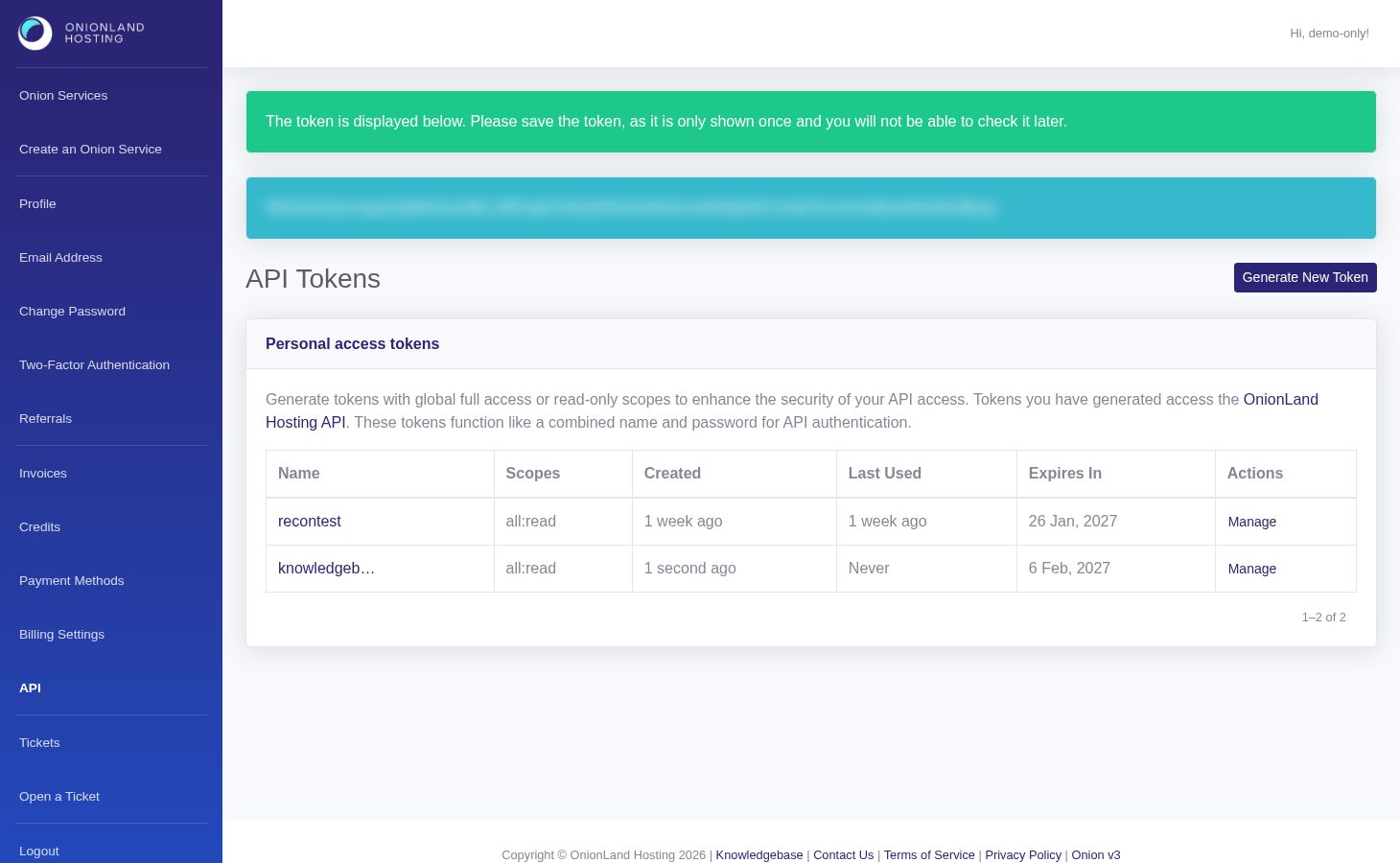
Copy it into the tool that needs it immediately; the value is not stored in a readable form and the list shows only the name afterwards. Send it as a bearer token: Authorization: Bearer <token>.
Step 4 — Manage and remove
The Manage action on a row lets you rename a token, regenerate it (which invalidates the old value at once) or delete it. Delete is guarded: you have to type the token's name, because every script that used it stops working. Prefer one token per integration — that way revoking one does not break the others, and "last used" tells you which ones are still alive.
Related articles
Tags:
- Customer Portal
- Account
- API