Our experts are always on hand to help answer your questions, get you started, and grow your presence online. You can email us any time
How to increase disk space for your onion service
- Knowledgebase
How to increase disk space for your onion service
Every onion service includes 1 GB of disk space. You can raise the limit yourself from the File Manager tab.
Step 1 — Check how much disk space you are using
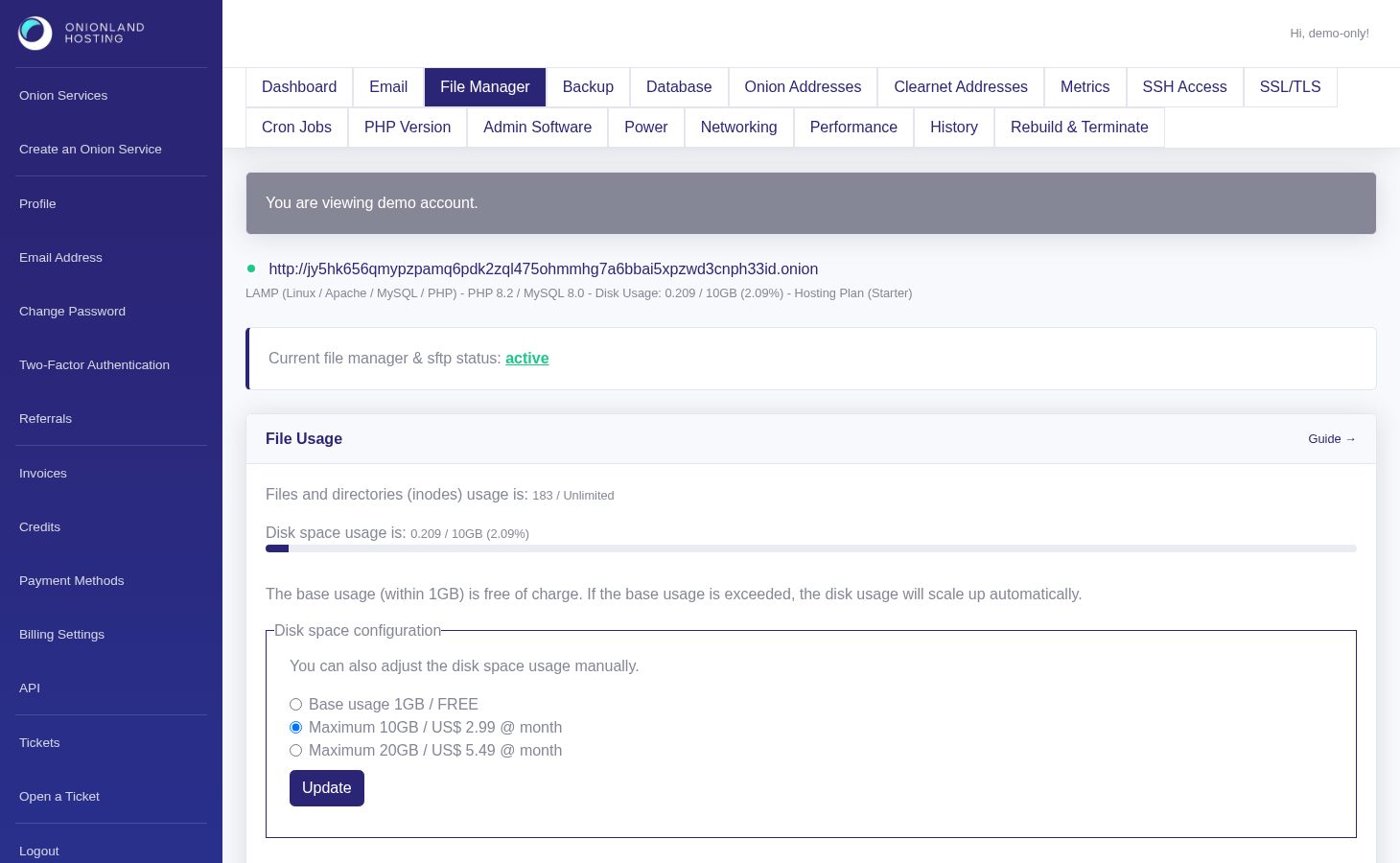
Sign in to the Customer Portal, open your onion service and click "File Manager". The page header repeats the disk usage, and the "File Usage" card breaks it down: files and directories (inodes) on one line, disk space on the other, each with the limit and the percentage. Below the two lines sits the "Disk space configuration" box — that is the control this article uses.
Step 2 — Pick a larger limit and click Update
Inside "Disk space configuration" select the option you want and click "Update":
- Base usage 1GB — free, included in every plan.
- Maximum 10GB — US$ 2.99 per month.
- Maximum 20GB — US$ 5.49 per month.
The same form is how you go back down. For more than 20GB, open a ticket and ask for a custom plan.
Step 3 — Read the confirmation
The page reloads and a green message confirms the change: "The disk space configuration is updated." The header line above it now shows the new limit — for example 0.201 / 10GB (2.01%) — and the usage percentage drops because the same bytes are now measured against a bigger quota.
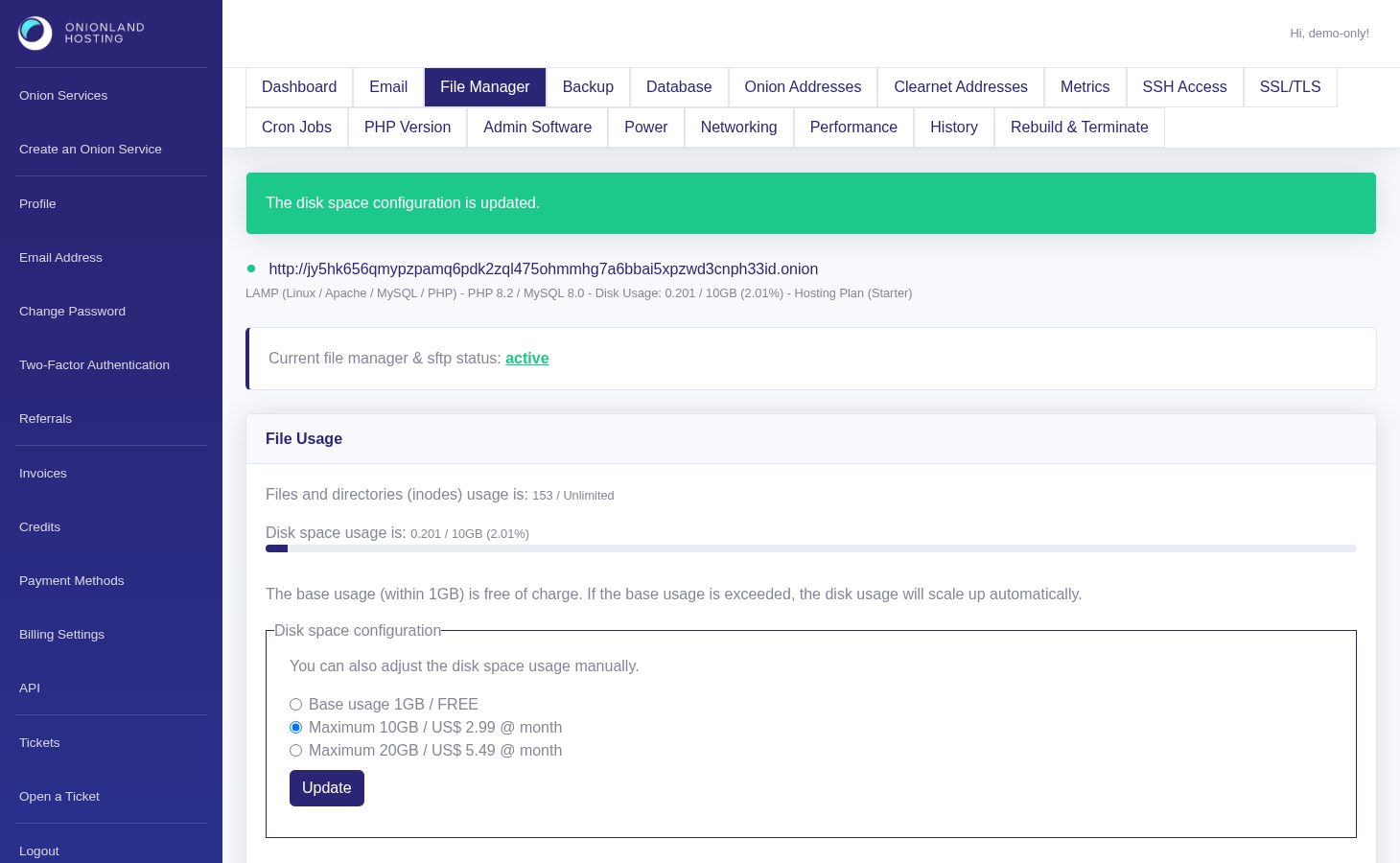
The card keeps the selected option, so a later visit shows which configuration is in force.
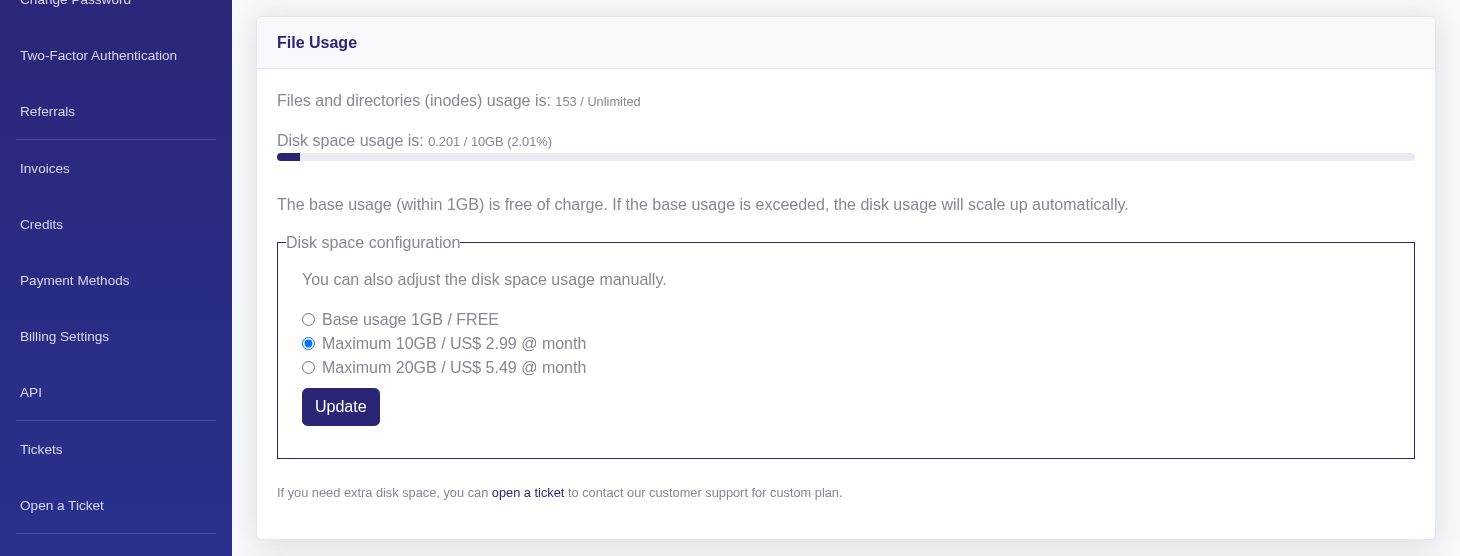
Raising the limit does not touch your files, your databases or your onion address, and the new price is applied on the next invoice.
What happens when the disk is full
Uploads fail and PHP can no longer write sessions or logs. Free space, or raise the limit as above.
Related articles
- How to upgrade your onion service plan
- How to download a backup of your onion service
- How to read your onion service dashboard
Tags:
- Onion Service
- Customer Portal
- Disk Space