Our experts are always on hand to help answer your questions, get you started, and grow your presence online. You can email us any time
How to upgrade your onion service plan
- Knowledgebase
How to upgrade your onion service plan
Every service runs on a hosting plan that decides how much CPU, memory, disk I/O and how many web workers it gets. You can move between the plans at any time from the portal; the address, the files and the databases stay where they are.
Step 1 — Open the Performance tab
In the Customer Portal, open your onion service and click "Performance". The page starts with Currently using: Hosting Plan (Starter) and then lists the three plans with what each one includes and its monthly price.
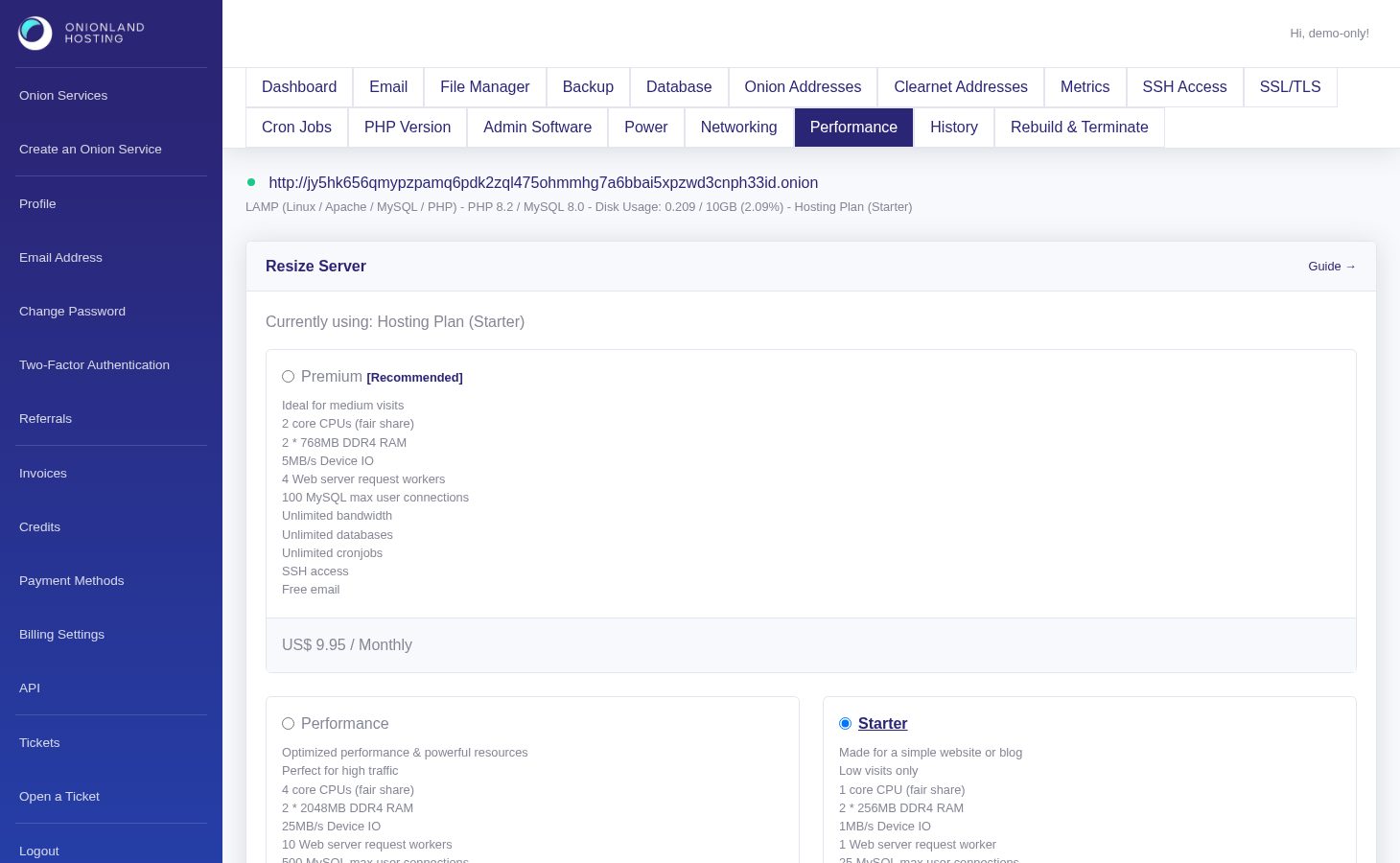
The plans are Starter (one core, for a simple site or blog), Premium (two cores and more workers, marked as recommended) and Performance (four cores, tuned for high traffic). Each card lists the CPU share, RAM, device I/O, web server request workers and MySQL connection limit.
Step 2 — Pick the plan and resize
Select the plan you want and click Resize Server. The page answers "The server size is resized. You may check the history page to see the latest status."
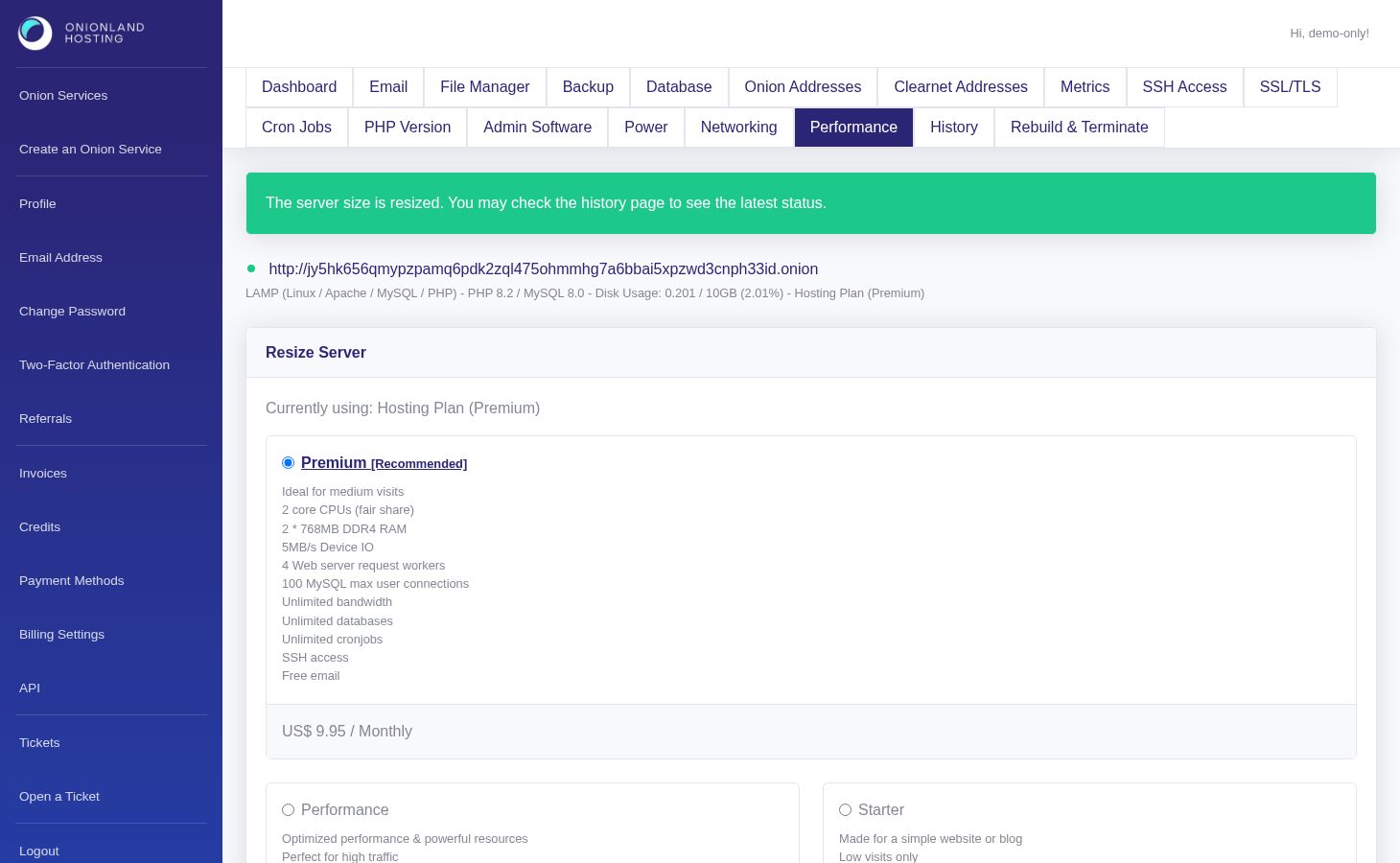
The change is applied by the host, not instantly: for a moment the page still names the old plan. Reload it after a minute — Currently using, the service header and the selected radio all show the new plan.
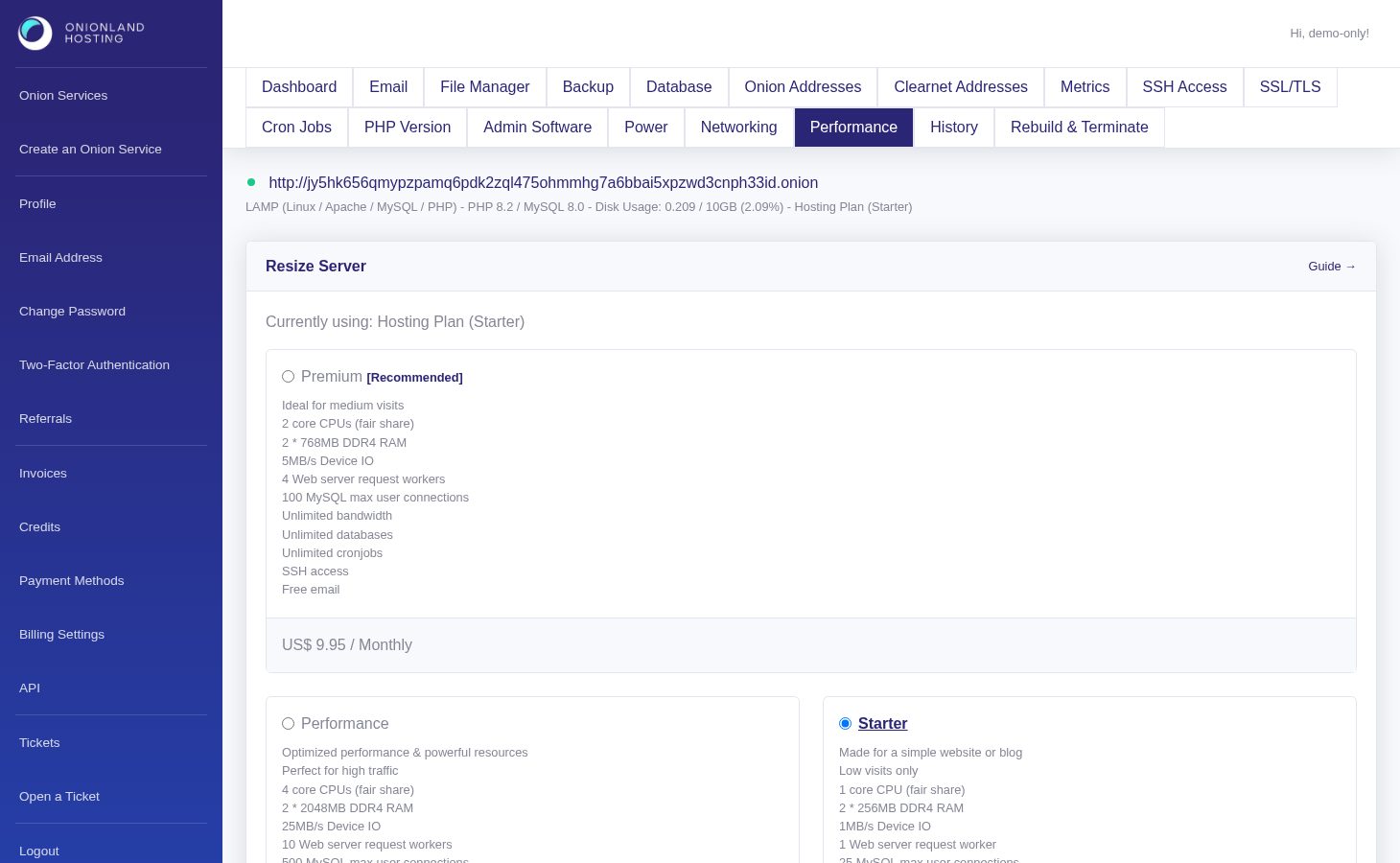
Step 3 — Check the result
Open the Dashboard and look at the resource bars after the change: the new limits are what the service now reports. The History tab records the resize with the time it took, which is the quickest way to confirm that a change you requested really ran.
The monthly price of the plan you selected is what you are billed from that point on, and a downgrade uses the same form — select the smaller plan and press Resize Server again. If the site is under load, resize during a quiet period: the host may restart the web server while it applies the new limits.
Related articles
- How to increase disk space for your onion service
- How to check your account balance and payment history
Tags:
- Onion Service
- Customer Portal
- Billing