Our experts are always on hand to help answer your questions, get you started, and grow your presence online. You can email us any time
How to check your account balance and payment history
- Knowledgebase
How to check your account balance and payment history
Everything you pay into the account is held as credit and drawn down by the monthly cost of your services. The Credits page is where you see how much is left, how fast it is being used, and every record of money that came in.
Step 1 — Open the Credits page
In the Customer Portal, click "Credits" in the sidebar. Three cards sit at the top:
- Balance — the credit you can still spend. It is the same figure the portal checks before it lets you add a service.
- Estimated Spent (Monthly) — what your services cost per month at today's configuration, shown as a deduction.
- Estimated Due Date — when that balance runs out at the current spending rate, with the number of days left. If the balance is already zero it reads immediately, and if you have no billable service it reads -.
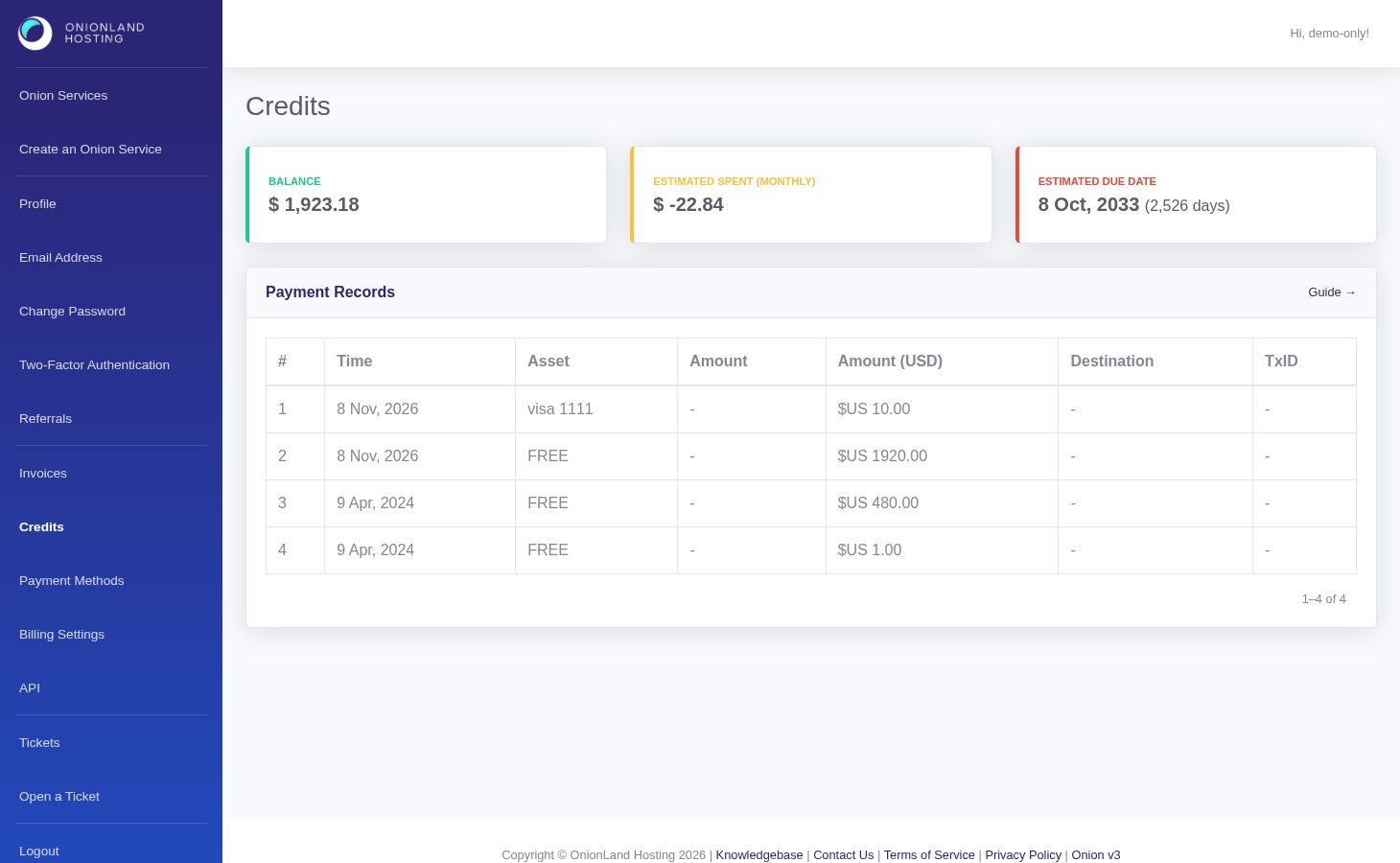
The due date is a projection, not an invoice date: adding a service or a disk resize lowers it, and a top-up pushes it back out.
Step 2 — Read the payment records
Below the cards, Payment Records lists every credit that reached the account, newest first. Each row is one transaction:
- Time — when it was booked.
- Asset — the currency that arrived: BTC, ETH, XMR, a Lightning payment, a card charge, or FREE for credit granted by us.
- Amount and Amount (USD) — the amount in that asset and its USD value at the time.
- Destination and TxID — the address it was sent to and the transaction id, so you can match a row to your own wallet history.
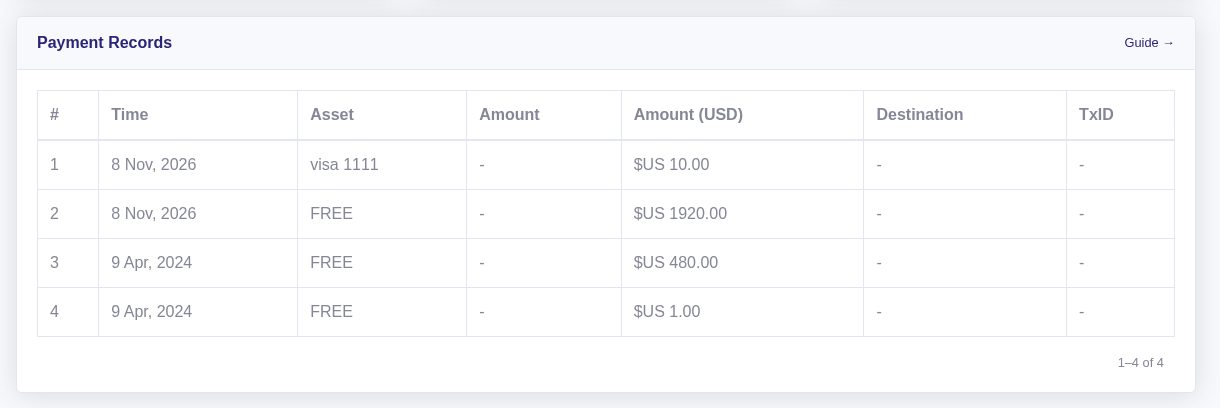
Payment records are credits, not charges: they never go negative. The money that leaves the account is itemised in the monthly invoice instead, which is what the Invoices page is for.
Related articles
- How to top up your account with a credit or debit card
- How to view and download your invoices
- How to earn referral credits
Tags:
- Customer Portal
- Billing
- Credits