Our experts are always on hand to help answer your questions, get you started, and grow your presence online. You can email us any time
How to top up your account with a credit or debit card
- Knowledgebase
How to top up your account with a credit or debit card
A card top-up adds credit to your account in a single step. The charge goes through Stripe, the card is stored as a payment method, and the credit is available to every service on the account as soon as the receipt appears.
Step 1 — Choose the card method
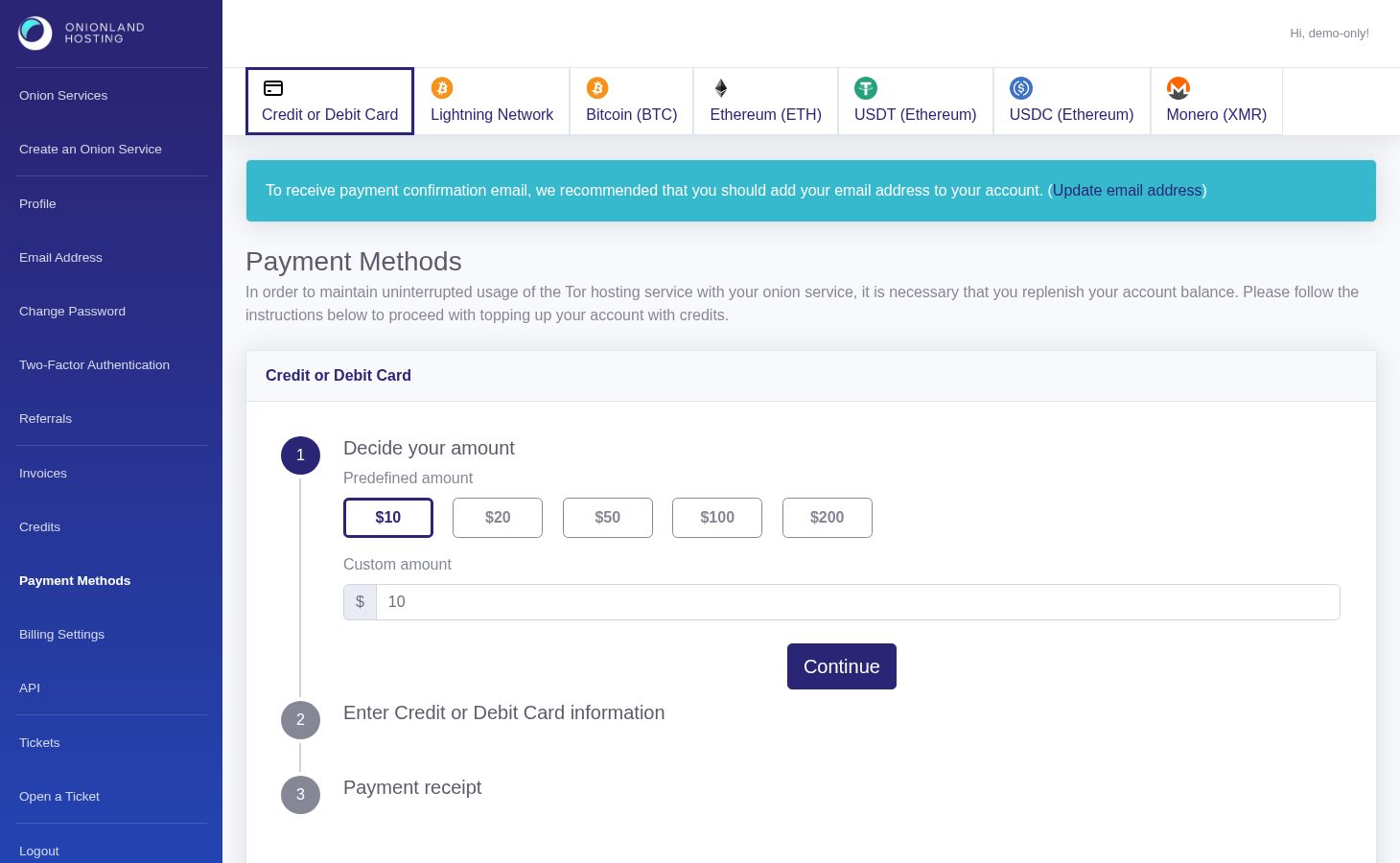
In the Customer Portal, click "Payment Methods" and then the Credit or Debit Card tab. The card form is a three-step wizard: decide the amount, enter the card, get the receipt.
Step 2 — Decide the amount
Pick one of the preset amounts (US$10, 20, 50, 100 or 200) or type a custom one — the minimum is US$0.50 and the maximum is US$1000, in steps of 0.50. Then press Continue.
Step 3 — Enter the card
The second step shows the amount you are about to pay and the card fields. Type the cardholder name and the card details; the Proceed to pay button stays disabled until Stripe has loaded and validated the fields.
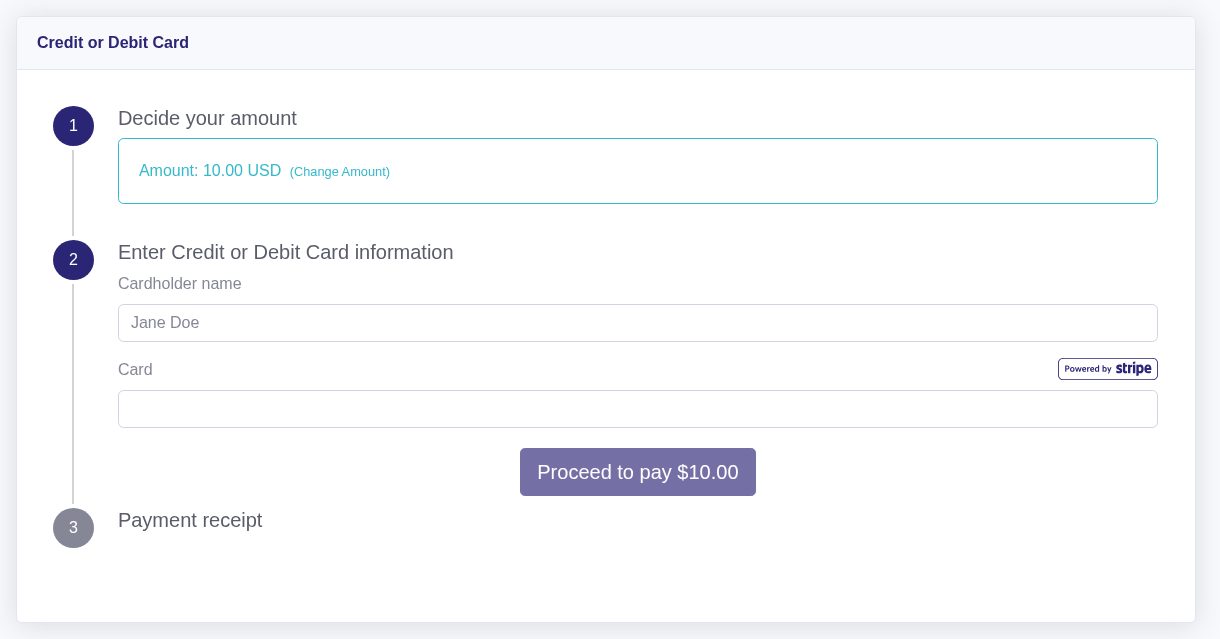
The card data is typed into Stripe's own form, not into the portal: the number never touches our servers, and the card is tokenised — we keep the brand and the last four digits only. Nothing is charged until you press the button.
Step 4 — Read the receipt
Press Proceed to pay. When Stripe confirms the payment, the wizard moves to step 3 and shows the receipt: Status: Confirmed, a payment id, the card as brand and last four digits, and the amount.
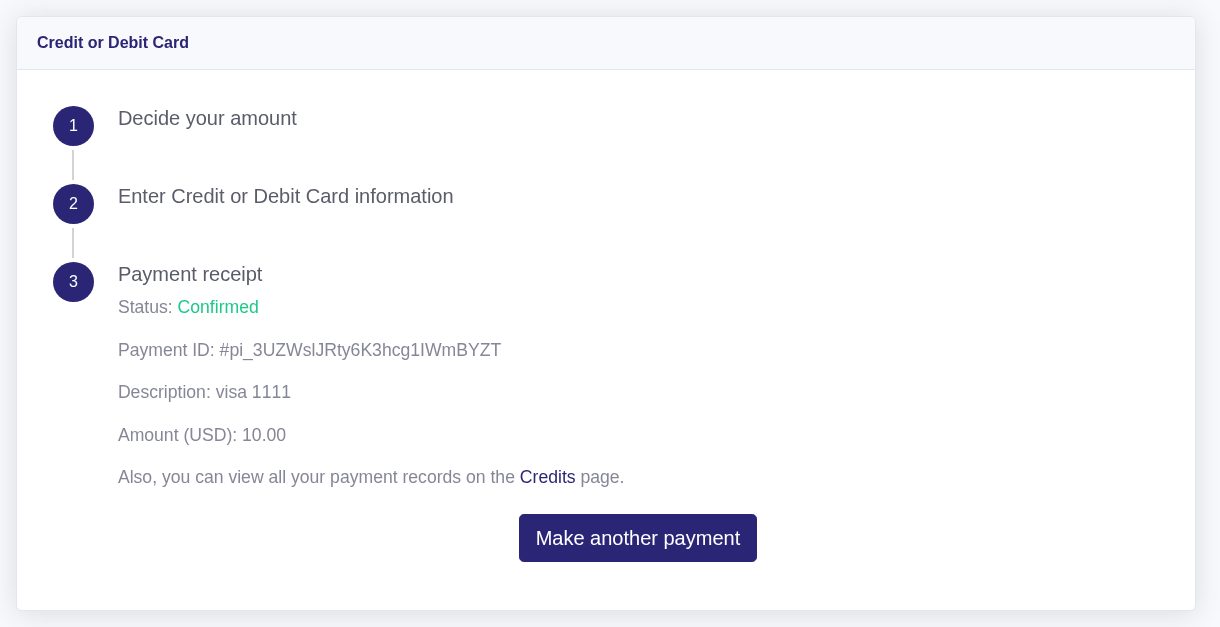
If the card is refused, the reason appears in red under the step title and nothing is charged — the receipt step only appears after a confirmation. A connection error there means your browser could not reach Stripe, not that the payment failed.
Step 5 — Check the credit
Open "Credits": the balance has grown by the amount you paid, and Payment Records has a new row with the card as its asset and the payment id as its transaction id. That row is what you quote if you ever need a refund.
The card is now a stored payment method on the Payment Methods page, so a later renewal can be settled with it without typing the number again.
Related articles
Tags:
- Customer Portal
- Billing
- Payment