Our experts are always on hand to help answer your questions, get you started, and grow your presence online. You can email us any time
How to download a backup of your onion service
- Knowledgebase
How to download a backup of your onion service
OnionLand Hosting backs your service up automatically — twice a week, kept for one week, at no cost. The copies stay inside your onion service, so you download them through the Tor Browser with your File Manager credentials.
Step 1 — Open the Backup tab
Sign in to the Customer Portal, open your onion service and click "Backup" in the tab bar.
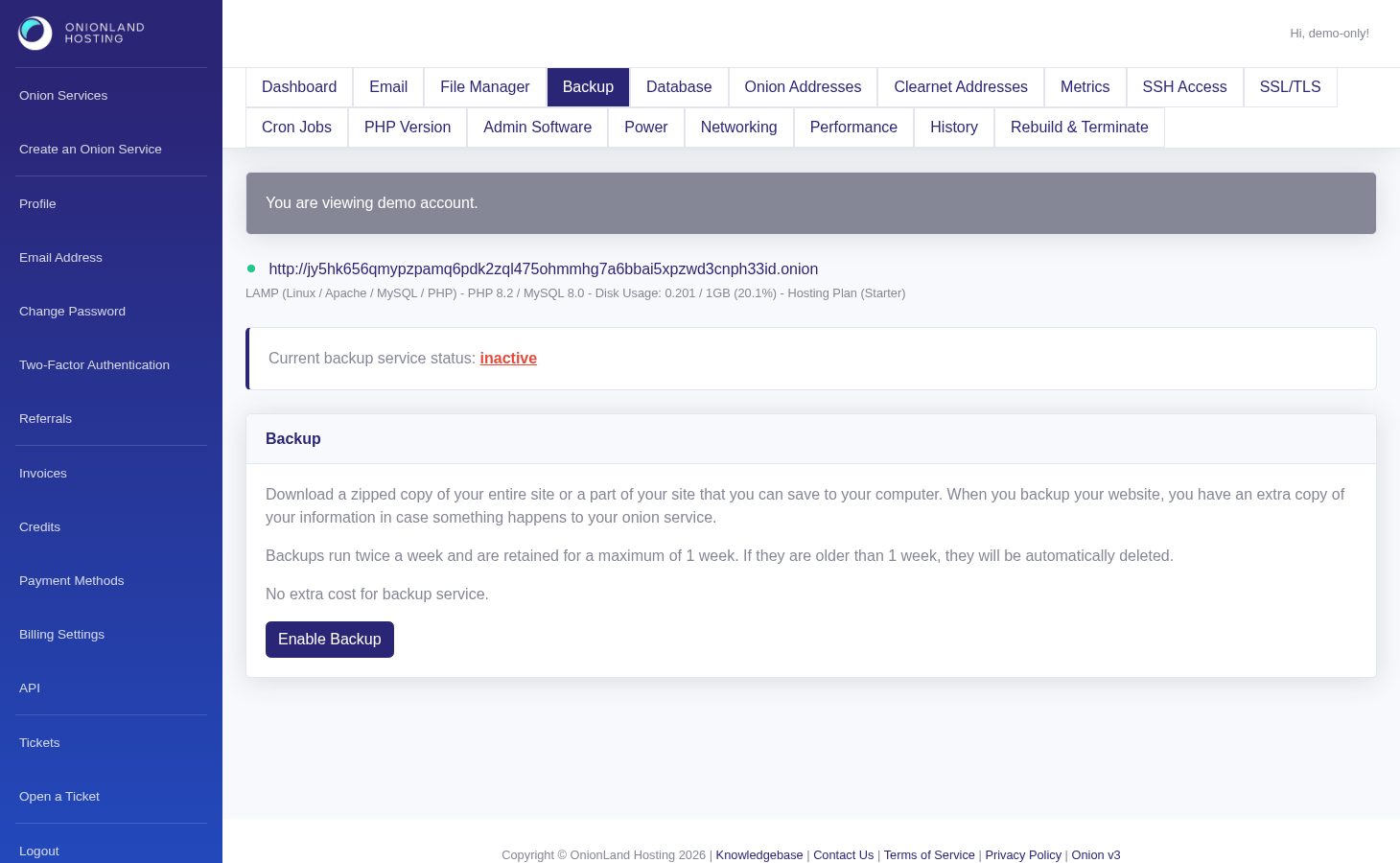
Step 2 — Enable the backup service
The first card shows the status. When it is active the button reads "Disable Backup"; when it is inactive it reads "Enable Backup" — click it. The page reloads with a green "The backup is enabled." and the status line above it reads active. There is no extra cost, and disabling later keeps the archives that already exist until their retention runs out.
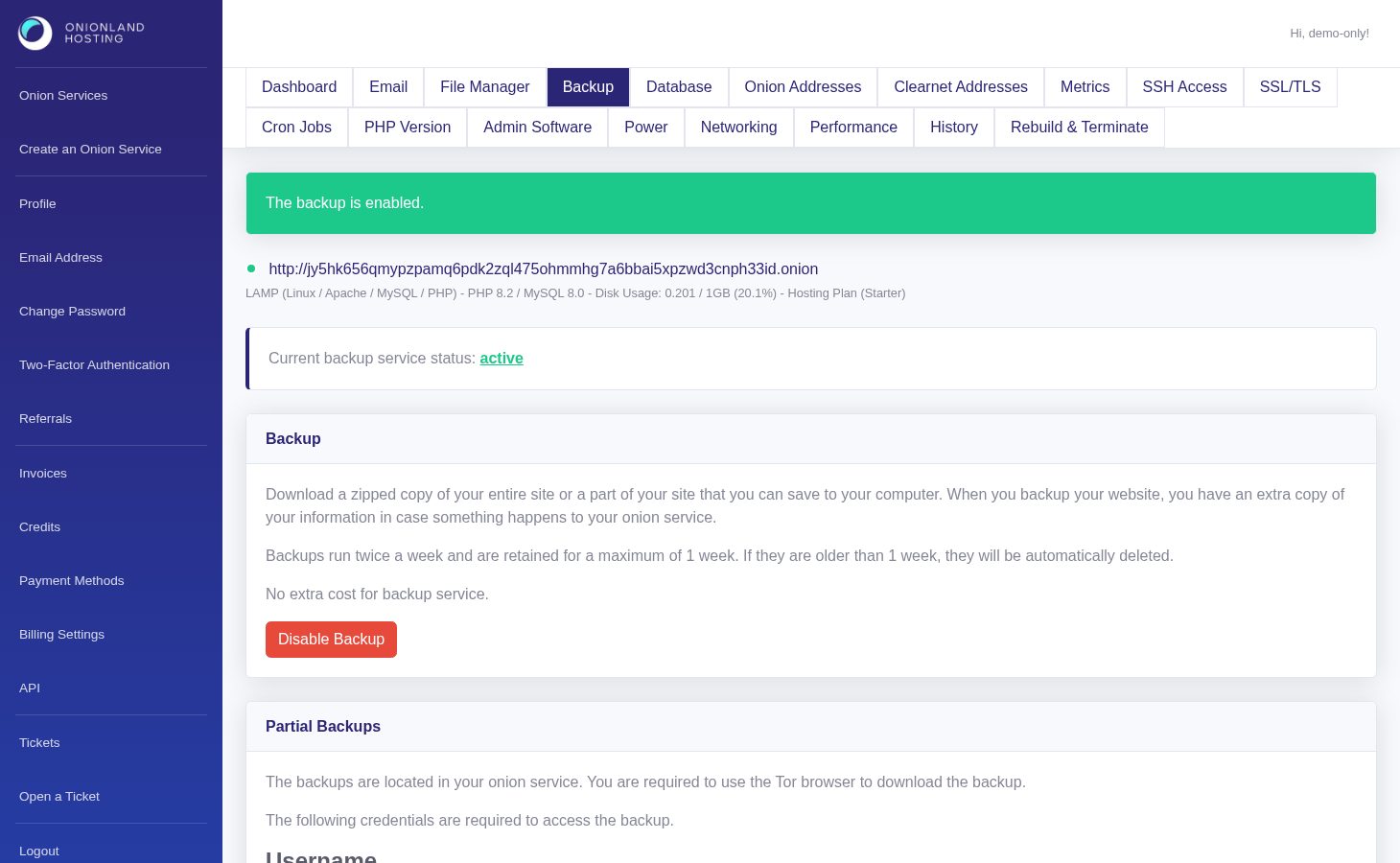
Step 3 — Wait for the first archive
Enabling starts the first copy immediately — in our test the archive appeared about a minute after the click. Reload until a row shows up; an empty card means the copy is still running.
Step 4 — Download the www directory or the MySQL database
The "Partial Backups" card lists the tarballs: one row per www archive and one per database archive, each with the filename, the time it was created and a "Download" link. Click "Download" next to the copy you need. The link lives inside your onion service, so:
- Open the Tor Browser — a normal browser cannot reach the address.
- Enter the address of your onion service followed by the file-manager port when prompted, and log in with the File Manager credentials shown on the File Manager tab.
- Save the .tar.gz file locally. The www archive contains your web root; the database archive contains a dump of every database in your MySQL instance.
If the card stays empty after a reload, open the History tab — the "backup application" event appears there once the copy has finished, which is the authoritative signal that a retry is unnecessary.
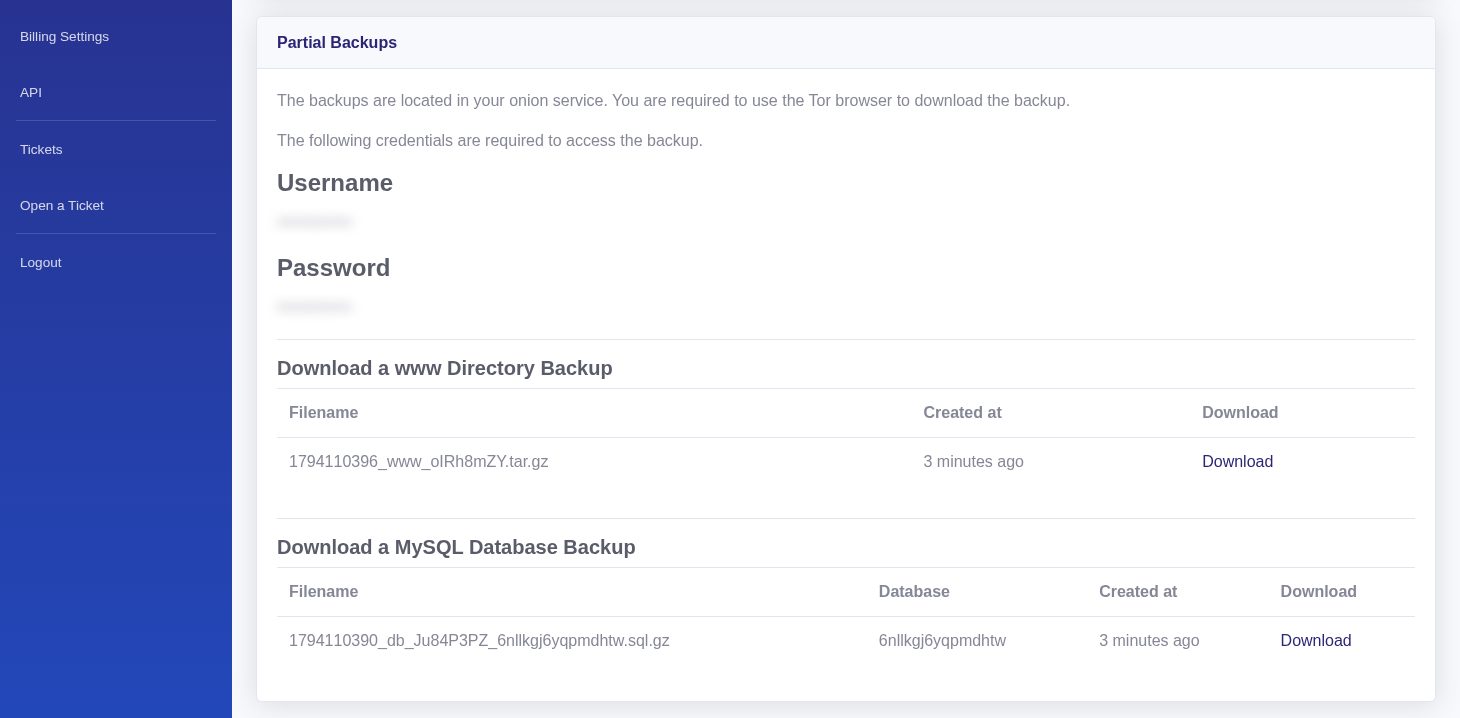
Restoring a backup
Restore is manual: unpack the www archive into your web root through the File Manager or SFTP, and import the SQL dump with phpMyAdmin.
Related articles
- How to increase disk space for your onion service
- How to connect to your onion service with SSH
- How to reboot or power off your onion service
Tags:
- Onion Service
- Customer Portal
- Backup