Our experts are always on hand to help answer your questions, get you started, and grow your presence online. You can email us any time
How to open a support ticket
- Knowledgebase
How to open a support ticket
A ticket is the only place where we can look at your account and answer you in writing. It is tied to the account, so you do not have to repeat which service you mean — but the more precisely you describe the problem, the fewer round trips it takes.
Step 1 — Open the Support page
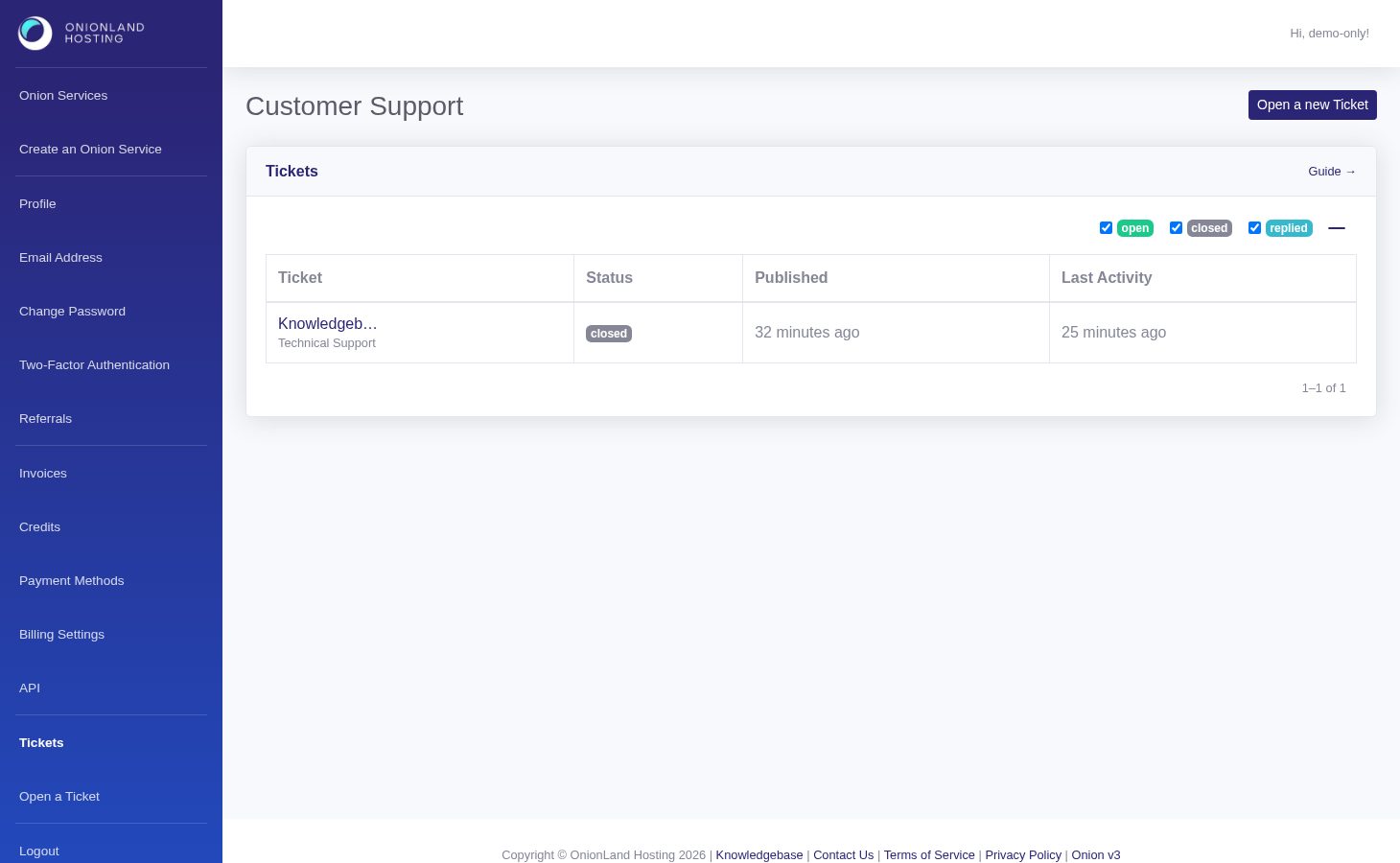
In the Customer Portal, click "Tickets" in the sidebar. The table lists your tickets with their subject, department, status (open, closed, replied), when it was published and when it last changed.
Step 2 — Press Open a new Ticket
Three fields are enough: a subject (one line, what is broken), a department, and the message. The departments are Technical Support, Sales, Info, Feedback, Billing and Abuse — pick Billing for anything about charges or invoices and Abuse for content complaints, so the ticket reaches the right queue.
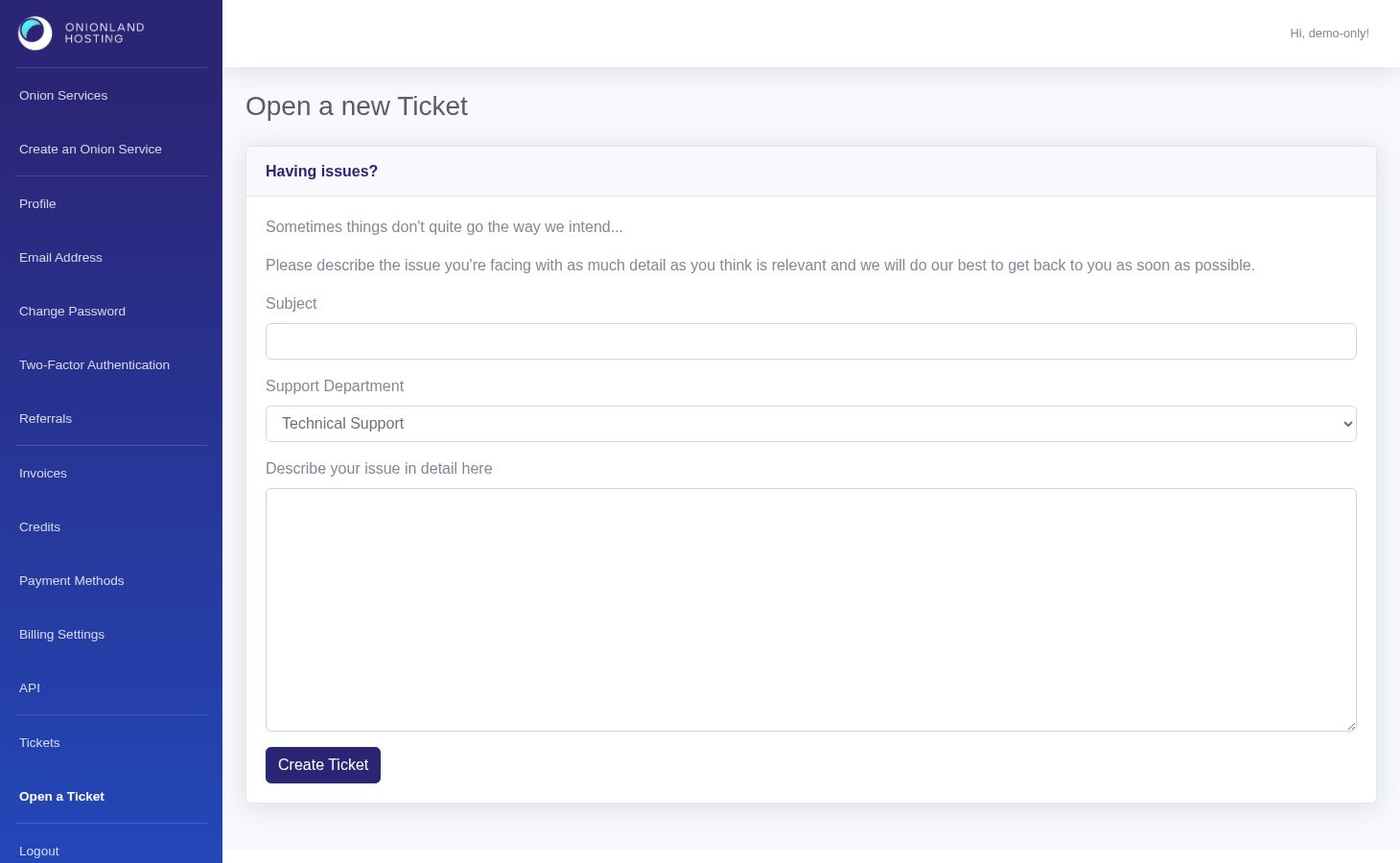
In the message, include the onion address of the service (not just its name), what you expected, what happened instead, and the exact wording of any error the portal showed you. If a change did not apply, open the service's History tab and mention the event and its time — that saves us from asking.
Step 3 — Send it
Press the button under the message. The page returns to the list with a green message: "Your ticket is created. We will response to your ticket as soon as possible." and the new row appears at the top, in status open.
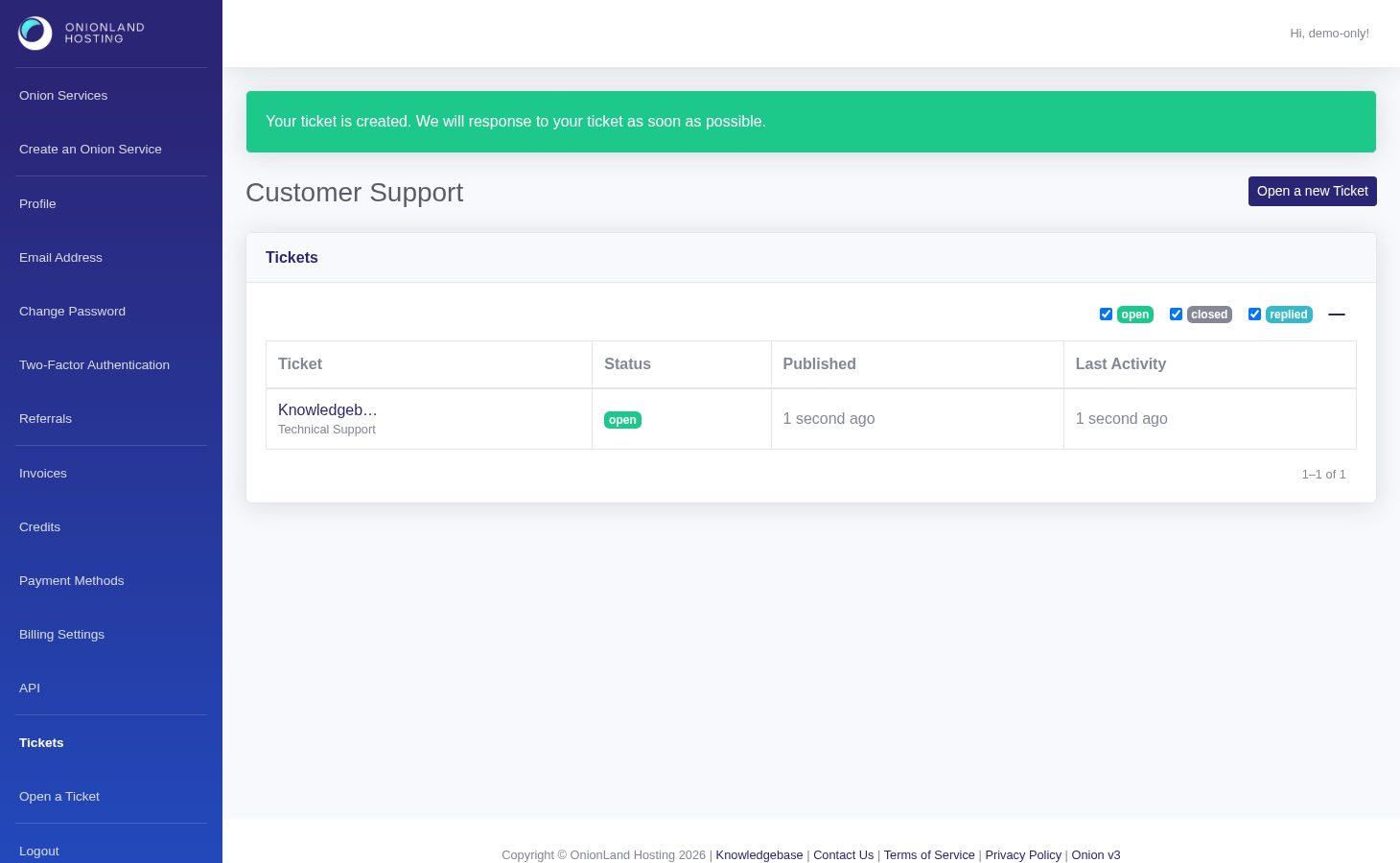
Answering in the ticket keeps the whole conversation in one place; the status changes to replied when we have written back. A ticket that has been answered and needs nothing more is closed — open a new one for a new problem rather than reviving an old thread, so the subject stays accurate.
Related articles
Tags:
- Customer Portal
- Support