Our experts are always on hand to help answer your questions, get you started, and grow your presence online. You can email us any time
How to connect to your onion service with WinSCP
- Knowledgebase
This tutorial shows you how to connect to your onion service over SFTP with WinSCP, the most common SFTP client on Windows, and how to download your logs and upload your website files over the Tor network. The settings are the same as in the FileZilla guide — only the windows are different.
Step 1 — Open the File Manager tab
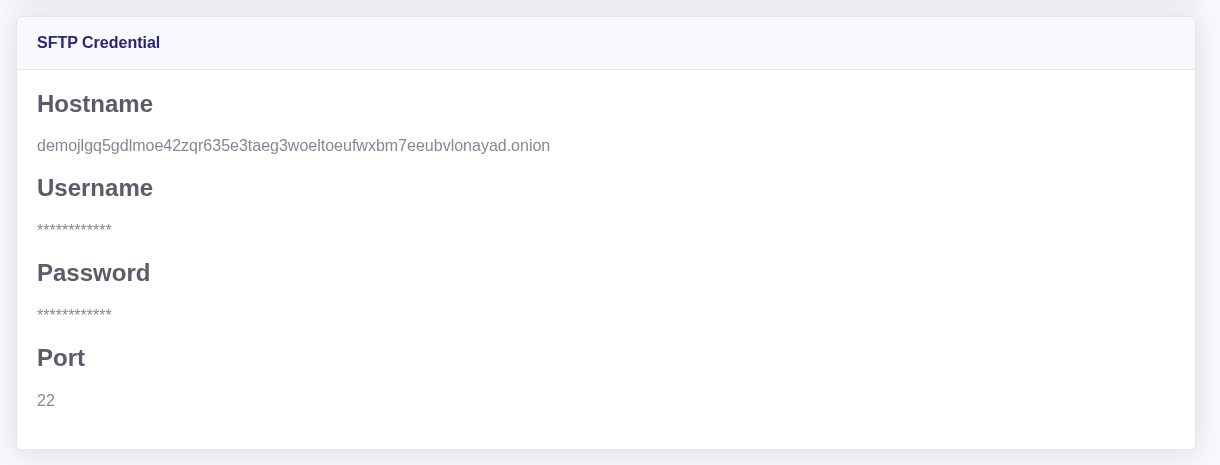
In the Customer Portal, open your onion service and click File Manager. At the bottom of that page the SFTP Credential card holds the four values the client asks for: the host name (your ….onion address), the user name, the password and port 22.
Connecting to the Tor network
First, connect the Tor network: start the Tor Browser (if you have not installed it yet, download it from torproject.org) and let it connect. The Tor Browser runs a SOCKS proxy on 127.0.0.1:9150, and that proxy is what WinSCP will use — it is the only way a .onion name can be resolved.
Downloading WinSCP
WinSCP is free and only exists for Windows. Download it from winscp.net; the "Portable executable" download is enough — it needs no installation and no administrator rights. You can use any other SFTP client instead, but the fields below are named after WinSCP's.
Configuring the proxy
WinSCP takes the proxy per site, not globally, so start from the login window: New Site in the left column, then click Advanced… at the bottom of the window.

In the advanced settings open Connection → Proxy and fill it in like this:
- Proxy type:
SOCKS5 - Proxy host name:
127.0.0.1 - Port number:
9150 - Do DNS name lookup at proxy end: Yes (this is what lets Tor resolve the onion name; with local lookup the connection fails with “Host … does not exist”)

Click OK to close the advanced settings. The proxy now belongs to this site — which is why you want to save the site rather than retyping it every time.
Connecting to your onion service
Back in the login window, fill in the four values from the SFTP Credential card on the File Manager tab:
- File protocol:
SFTP(not SCP, not FTP) - Host name: your
….onionaddress - Port number:
22— the SSH server inside your container, not the port of your website - User name and Password: the SFTP credentials shown on that tab
Click Save to keep the site (proxy included), then Login.
One prompt is specific to WinSCP: while connecting it asks for a Proxy username and Proxy password. Tor advertises that a SOCKS proxy may carry credentials, WinSCP offers them, and Tor then asks for them — although it accepts anything, because the values are only used to separate streams. Leave both fields empty and click OK; the connection continues.
The first connection: the host key
WinSCP cannot know yet that the onion address really is your container, so on the first connection it stops with "Continue connecting to an unknown server and add its host key to a cache?" and shows the fingerprint of the container's SSH key. That is expected with a .onion address — no certificate authority signs those keys. Click Accept (older versions label the button Yes) to accept the key and to cache it, so you are not asked again for this host.

PuTTY shows the same warning ("The server's host key is not cached"), FileZilla words it as "The server's host key is unknown" — same check, same answer.
What a successful connection looks like
After the login WinSCP opens its two-pane (Commander) view: your own computer on the left, the container on the right. The remote side lists the folders of the service:

www— the web root. Anything you upload here is served by your onion site.logs— the Apache access and error logs of the site.backup— the place the service keeps its own archives.
The status bar shows Connected and the remote path; dragging a file between the panes uploads or downloads it, and the transfer queue at the bottom shows the progress and speed. If the connection drops, reconnect from the same saved site — the session is reused, including the proxy.
When you are done: put the proxy back
The proxy setting belongs to that one site, so it does not affect your other FTP connections. If you also use this site entry for something else, or if you later cannot reach a normal server from WinSCP, open Advanced → Connection → Proxy for that site and set Proxy type back to None. Do the same in any other client where you configured 127.0.0.1:9150 globally: with the Tor Browser closed there is no proxy on that port, and every connection then fails.
The other way round: a saved session per address
Each onion service has its own credentials, so give each one its own saved site (New Site → name it after the service → Save). The proxy can be copied between them: in the login window, right-click a saved site and choose Duplicate, then change only the host name, user and password.
Related articles
- How to connect to your onion service over SFTP (FileZilla)
- How to connect to your onion service with SSH
- How to upload a large application to your onion service
Tags:
- Onion Service
- SFTP
- Windows