Our experts are always on hand to help answer your questions, get you started, and grow your presence online. You can email us any time
How to connect to your onion service over SFTP
- Knowledgebase
This tutorial shows you how to connect to your onion service over SFTP with FileZilla — on Windows, macOS or Linux — and how to download the logs and upload your website files over the Tor network.
Connecting Tor Network
First, you have to configure to connect the tor Network. To connect Tor Network, basically you should open the Tor Browser (if you haven't installed Tor Browser yet, download it from torproject.org). Click connect, and you have connected the Tor Network.
Downloading SFTP Client
In this guide, we are using FileZilla as our SFTP client. It is not necessary to use FileZilla and you can use any other SFTP client if you want to. FileZilla is available for Windows, macOS and Linux, and the settings shown below are the same on all three.
Configuring SFTP Client
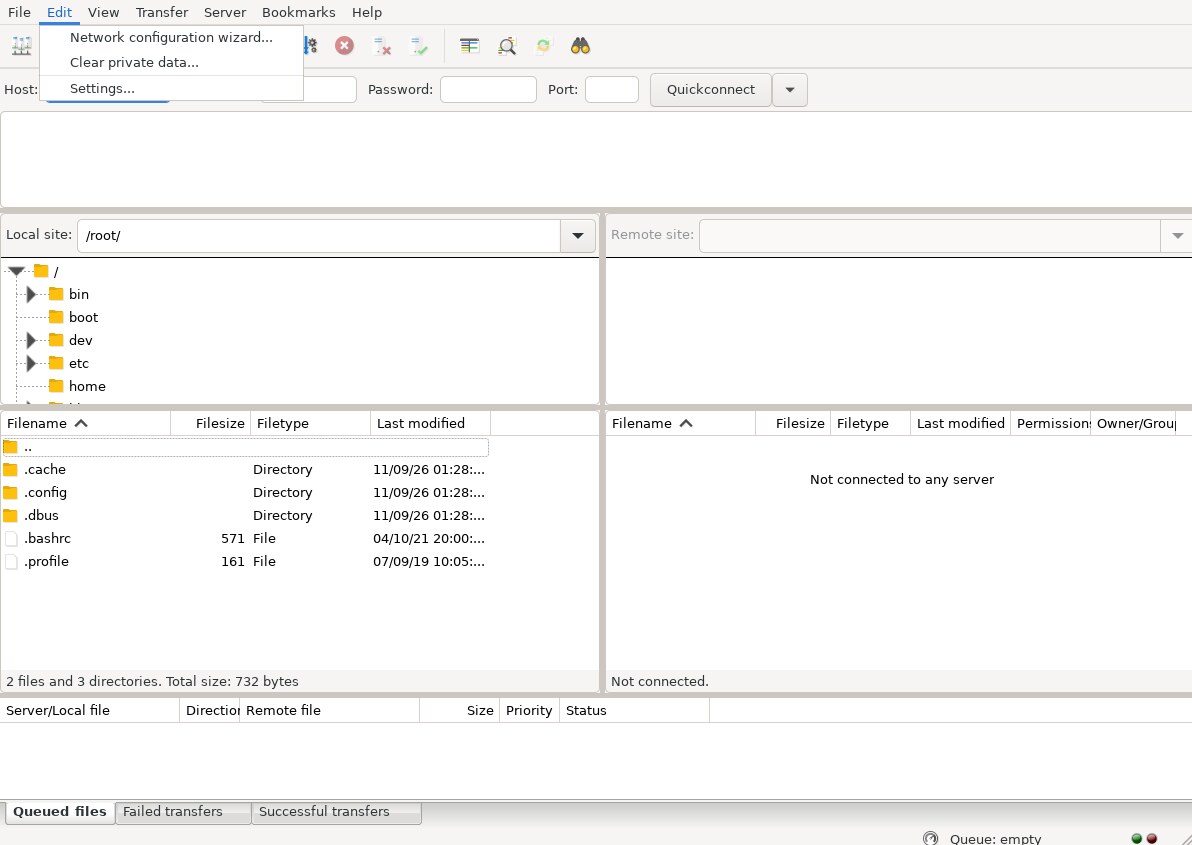
To configure the FileZilla, click "Edit" in the menu and select "Settings".
In the settings tree, select Connection → Generic proxy, choose SOCKS 5 and enter the address of the Tor proxy that your Tor Browser runs:
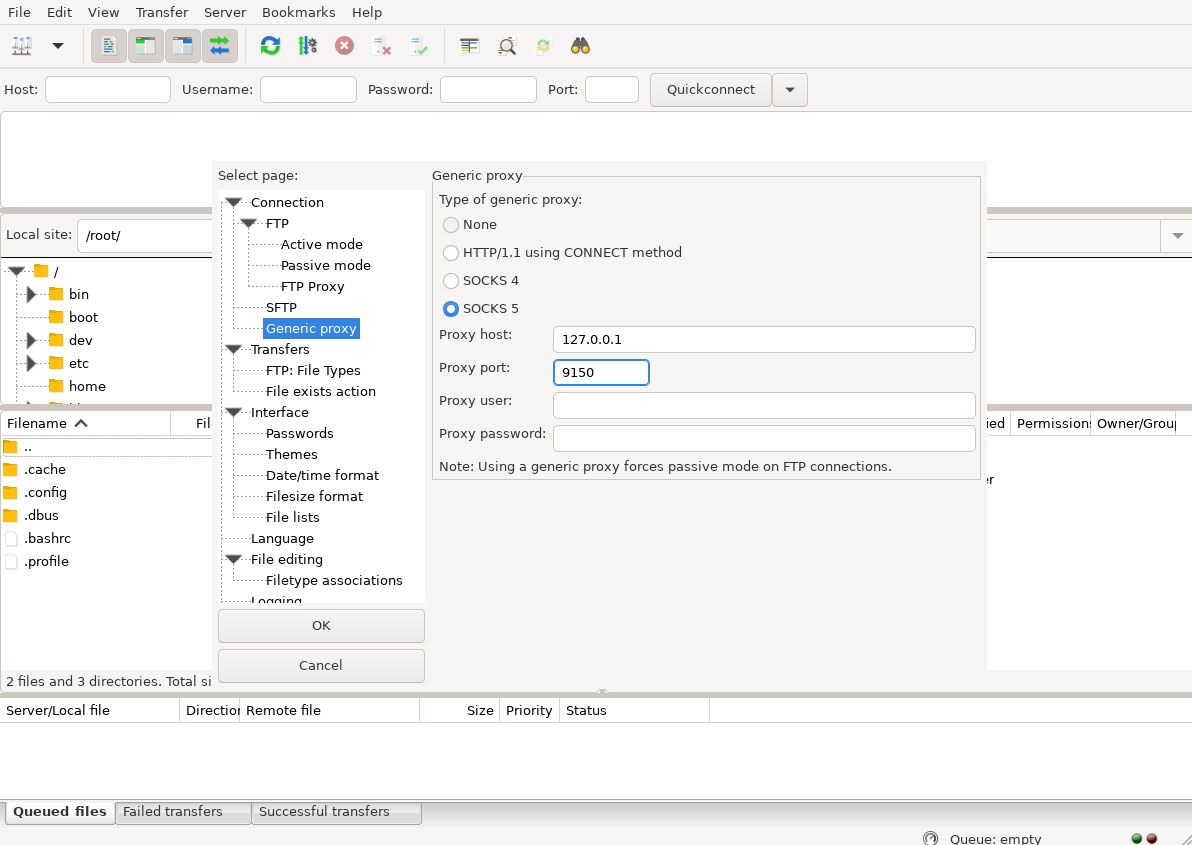
Proxy host: 127.0.0.1
Proxy port: 9150
Click "OK" to save the setting. From now on every connection FileZilla makes goes through the Tor network, so a .onion address can be resolved.
*If you have finished to connect your onion service, it is required to revert back your settings - to set the proxy type to "None". Otherwise, you cannot connect to the clearnet service if you close the tor browser.*
Connecting to your onion service
To connect the onion service, you are required to fill in Host, Username, Password and Port, that you can copy the value from our Hosting Admin Access Page. You can either type those four values into the Quickconnect bar of the main window, or save them once in File → Site Manager so that you can reconnect with a single click later:
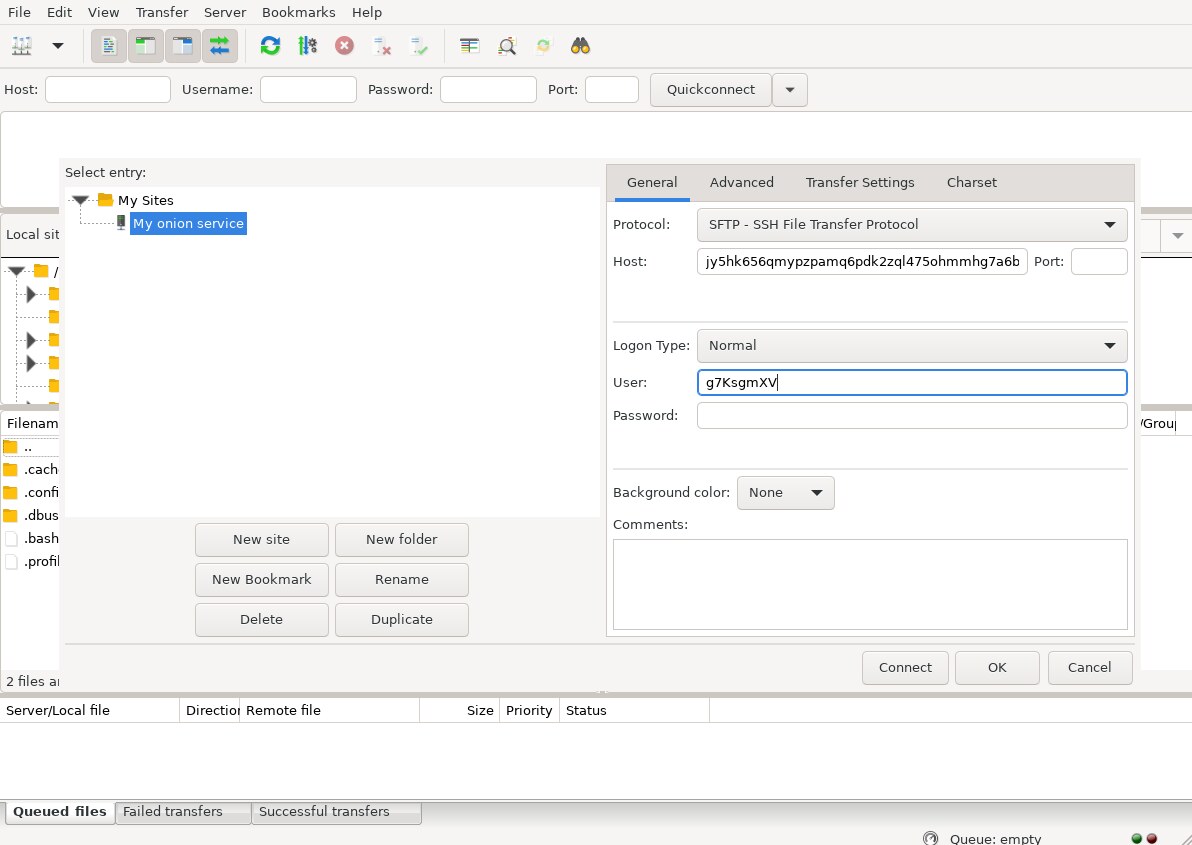
The protocol must be SFTP - SSH File Transfer Protocol, the port stays 22 (the port of the SSH server inside your container, not the port of your website), and the username and password are the SFTP credentials shown on the Hosting Admin Access Page.
What a successful connection looks like
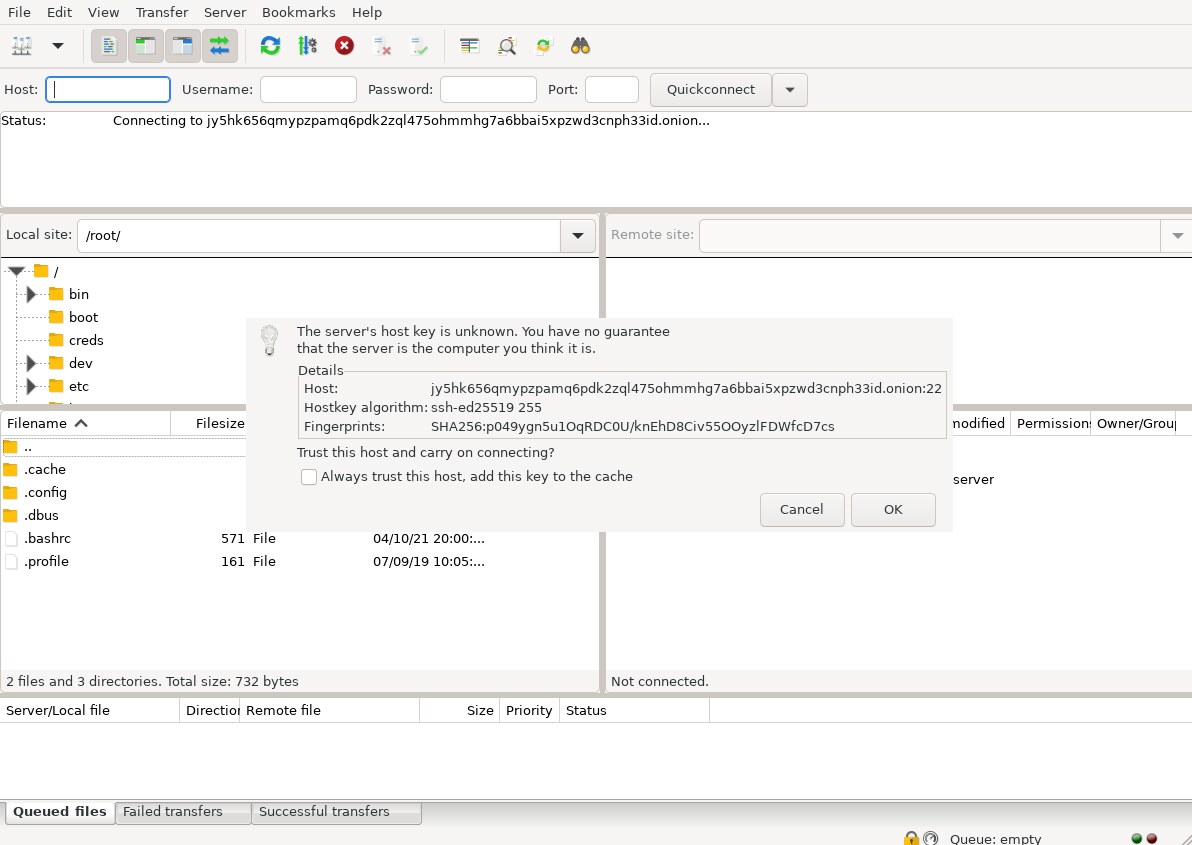
The very first time you connect, FileZilla cannot know yet that the onion address really is your container, so it asks you to trust the server's host key. It prints the fingerprint of the container's SSH key; click "OK" (tick "Always trust this host" if you do not want to be asked again). Every client shows this once per host — PuTTY calls it "The server's host key is not cached".
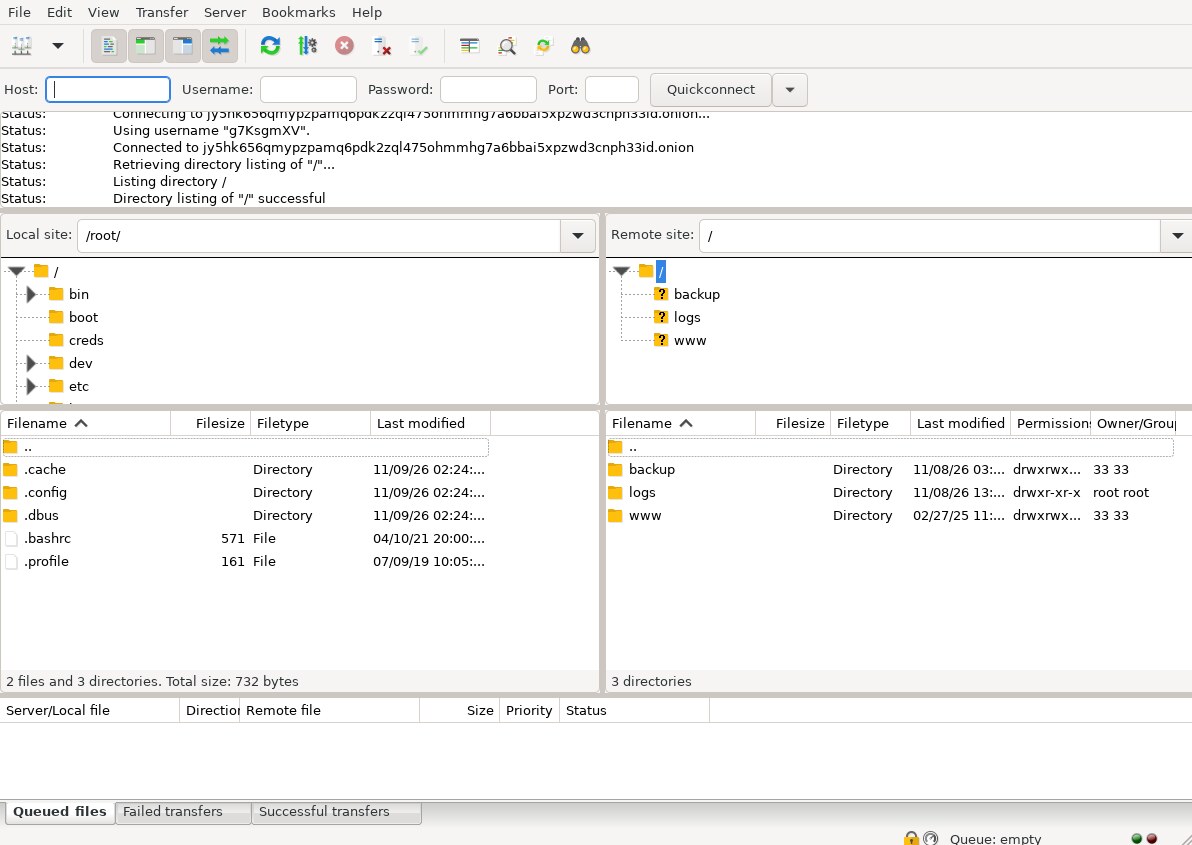
After the login you get a status line per step — Using username …, Connected to …onion, Directory listing of "/" successful — and the right-hand pane lists the folders of your container: backup, logs and www. www is the web root; anything you upload there is served by your onion site.
Transferring files
After connecting the SFTP, you are able to download the access log, error log from your hosting. And you can upload your website file to your www root folder by connecting SFTP over Tor network.
Moving a whole application this way — hundreds of files, or a few gigabytes — is much slower than it needs to be, because every small file costs a Tor round trip and the container is limited to 1 MiB/s: upload one archive instead and unpack it over SSH, as described in How to upload a large application to your onion service.